Imagine asking your ERP a plain-English question, “Which customers haven’t paid their invoices this month?” and getting an accurate answer in seconds, pulled directly from your live Odoo database. That’s exactly what happens when you connect Odoo to Claude using an MCP server.
The Model Context Protocol (MCP) is an open standard developed by Anthropic that lets AI assistants like Claude securely connect to external systems, including your Odoo ERP. Instead of copying data into a chatbot, Claude reads (and, if you allow it, writes) records directly through a controlled, permission-aware interface.
In this guide, we’ll walk you through the entire setup, from installing the MCP server module in Odoo to configuring Claude Desktop, plus security best practices, real business use cases, and answers to common questions.
Need help connecting AI to your Odoo instance? Talk to our Odoo experts for a free consultation.
What Is an MCP Server (and Why Should Odoo Users Care)?
The Model Context Protocol works like a universal adapter between AI models and business software. Think of it as a USB-C port for AI: one standard connection that lets Claude plug into any compatible system, such as CRMs, databases, file systems, and ERPs like Odoo.
An MCP server sits between Claude and your Odoo instance. It:
- Exposes selected Odoo models (customers, invoices, sales orders, inventory) as tools Claude can use
- Enforces authentication and permissions, so Claude only sees what a given user is allowed to see
- Translates natural language requests into structured Odoo API calls (XML-RPC or JSON-RPC)
For Odoo users, this means no more exporting CSVs to analyze data, no manual report building for quick questions, and no switching between apps to check the status of an order.
Why Connect Odoo to Claude? Key Business Benefits
Before the how, here’s the why:
- Conversational data access: Sales teams can ask “Show me all opportunities above $10K closing this quarter” without opening a single Odoo filter.
- Faster reporting: Claude can summarize inventory levels, overdue invoices, or CRM pipelines on demand.
- Reduced training overhead: New employees can query the ERP in plain English instead of learning Odoo’s interface deeply from day one.
- Automation potential: With write access enabled, Claude can create leads, update records, or draft quotations, with your approval rules intact.
- Better decisions: Combine live ERP data with Claude’s analytical reasoning for instant insights.
If your business is still evaluating Odoo itself, start with our complete guide to Odoo ERP to understand the platform’s fundamentals first.
Prerequisites: What You Need Before You Start
Make sure you have the following ready:
- A running Odoo instance (Odoo 17, 18, or 19 recommended; self-hosted, Odoo.sh, or Odoo Online with API access)
- Administrator access to install modules and manage settings
- Claude Desktop installed (Windows/macOS), or a Claude Pro/Team/Enterprise plan if using remote custom connectors
- Python 3.10+ and uv/uvx installed on your machine (for local MCP server setups)
- An Odoo API key (we’ll generate this in Step 3)
Step-by-Step: Connecting Odoo to Claude via MCP Server
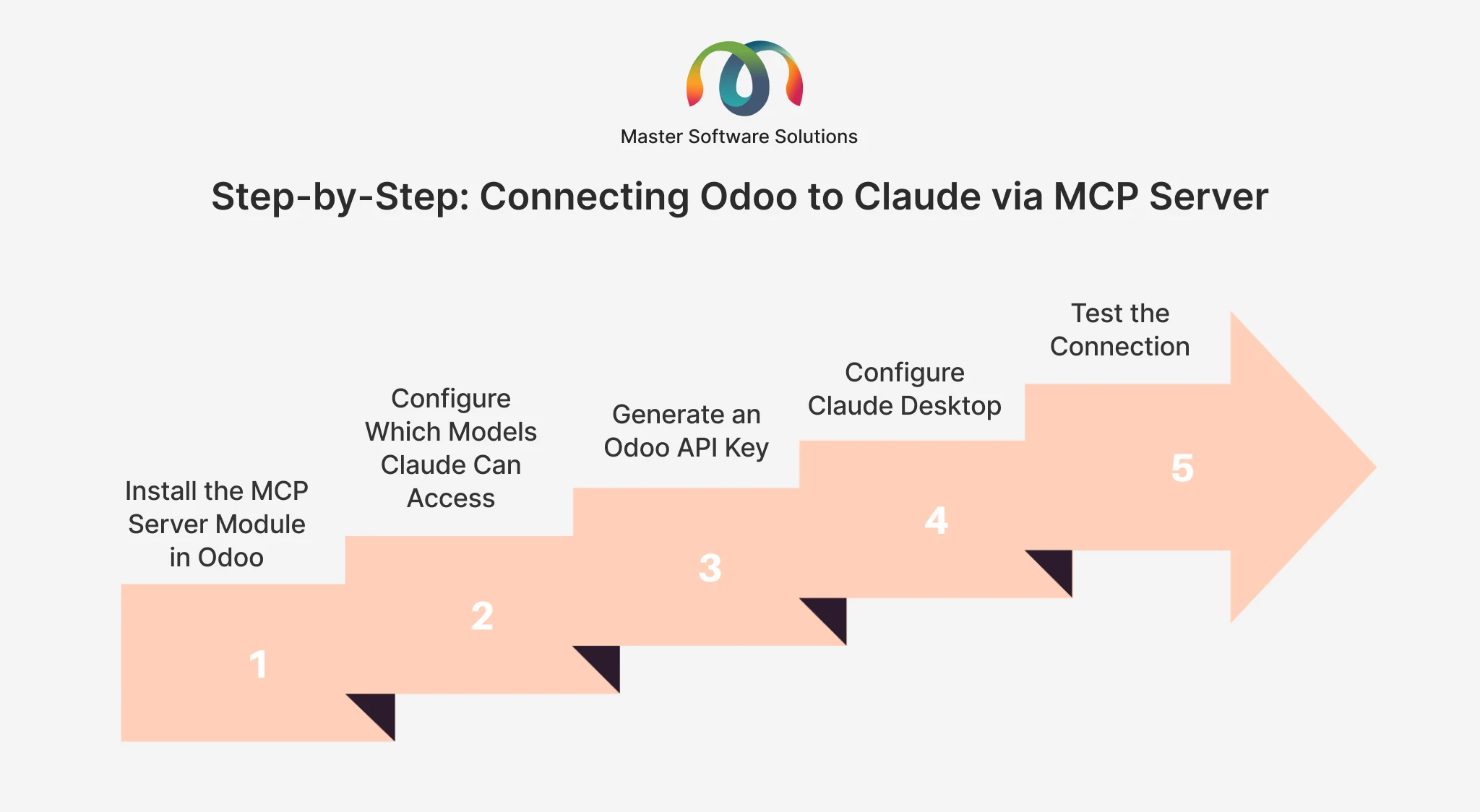
Step 1: Install the MCP Server Module in Odoo
- Go to the Odoo Apps Store and download the MCP Server module for your Odoo version (community and paid options exist, choose based on your needs).
- Place the module in your Odoo addons directory (self-hosted) or upload it via Odoo.sh.
- Restart your Odoo server and update the apps list.
- Search for “MCP Server” in Apps and click Install.
Step 2: Configure Which Models Claude Can Access
- Navigate to Settings → MCP Server (location may vary by module).
- Enable the MCP server.
- Select the Odoo models you want to expose, for example, res.partner (contacts), sale.order (sales orders), account.move (invoices), and crm.lead (leads).
- Set access levels per model: read-only or read/write. Start with read-only.
Step 3: Generate an Odoo API Key
- Click your avatar → My Profile → Account Security.
- Under API Keys, click New API Key.
- Give it a descriptive name, like “Claude MCP,” and copy the key immediately; Odoo shows it only once.
Pro tip: Create a dedicated Odoo user for AI access with tightly scoped permissions rather than using an admin account. Claude will inherit exactly that user’s access rights.
Step 4: Configure Claude Desktop
1. Open your Claude Desktop config file:
- Windows:
%APPDATA%\Claude\claude_desktop_config.json - macOS:
~/Library/Application Support/Claude/claude_desktop_config.json
2. Add the MCP server entry:
{
  "mcpServers": {
    "odoo": {
      "command": "uvx",
      "args": ["mcp-server-odoo"],
      "env": {
        "ODOO_URL": "https://yourcompany.odoo.com",
        "ODOO_API_KEY": "your-api-key",
        "ODOO_DB": "your-database-name"
      }
    }
  }
}
3. Save the file and restart Claude Desktop completely.
Using Claude on the web (Team/Enterprise)? You can instead add a remote MCP server under Settings → Connectors → Add custom connector and point it at your hosted MCP endpoint; no local install needed.
Step 5: Test the Connection
Open a new Claude conversation and look for the tools icon confirming the Odoo server is connected.
Then try prompts like the following:
- “List my 10 most recent sales orders from Odoo.”
- “Which invoices are overdue as of today?”
- “Summarize this month’s new CRM leads by source.”
If Claude returns live data from your database, congratulations, your Odoo–Claude integration is live.
Stuck at any step? Our team has done this dozens of times. Explore our Odoo module development services.
Common Setup Errors and How to Fix Them
- “Server disconnected” in Claude Desktop: Usually a JSON syntax error in the config file. Validate your JSON and restart Claude.
- Authentication failed: Regenerate the API key and confirm the database name matches exactly (case-sensitive).
- Claude can’t see certain records: Check the MCP module’s model access settings and the connected user’s Odoo access rights.
- uvx command not found: Install UV from Astral’s official installer and ensure it’s in your system PATH.
- Slow responses: Limit exposed models to what you actually need; fewer tools mean faster, more accurate results.
Security Best Practices for Odoo + Claude
AI access to ERP data demands discipline:
- Principle of least privilege: Expose only necessary models and default to read-only.
- Dedicated AI user: Never connect Claude with admin credentials.
- HTTPS only: Your Odoo instance must use SSL/TLS for any remote connection.
- Rotate API keys quarterly and revoke unused ones.
- Audit logs: Review what the AI user accessed, especially with write permissions enabled.
- Human-in-the-loop: Require approval workflows for any record creation or updates initiated through Claude.
Real-World Use Cases
- Sales: “Draft a follow-up email for every lead untouched for 14 days.” Claude pulls leads from Odoo CRM and writes personalized drafts.
- Finance: “Compare Q1 vs Q2 receivables and flag customers with worsening payment behavior.”
- Inventory: “Which products are below reorder point in the main warehouse?”
- Support/Operations: “Summarize all open helpdesk tickets tagged urgent, grouped by customer.”
Many of these workflows benefit from custom Odoo modules that structure your data for AI consumption, something a tailored Odoo customization can unlock.
When to Bring In an Odoo Integration Partner
A basic read-only connection is a DIY afternoon project. But consider expert help if you need multi-company or multi-database MCP setups, custom tools beyond standard CRUD operations (e.g., triggering manufacturing orders), enterprise-grade security reviews and audit trails, or a hosted remote MCP server your whole team can use through Claude’s web interface.
As an official Odoo partner with 13+ years of ERP experience, Master Software Solutions builds secure, production-ready AI integrations on top of Odoo, from module development to full implementation.
Ready to make your ERP conversational? See our Odoo implementation services.
Final Thoughts
Connecting Odoo to Claude through an MCP server turns your ERP from a system you operate into a system you converse with. The setup takes under an hour for a basic configuration, and the productivity payoff, including instant answers, automated drafting, and on-demand reporting, compounds daily.
Start small: expose two or three models read-only, test with your team, then expand as confidence grows.
Want it done right the first time?
Contact Master Software Solutions. Our certified Odoo developers will design, secure, and deploy your AI-powered ERP integration end to end.