Google Maps API Integration
Seamless integration with Google Maps for accurate routing and route visualization.
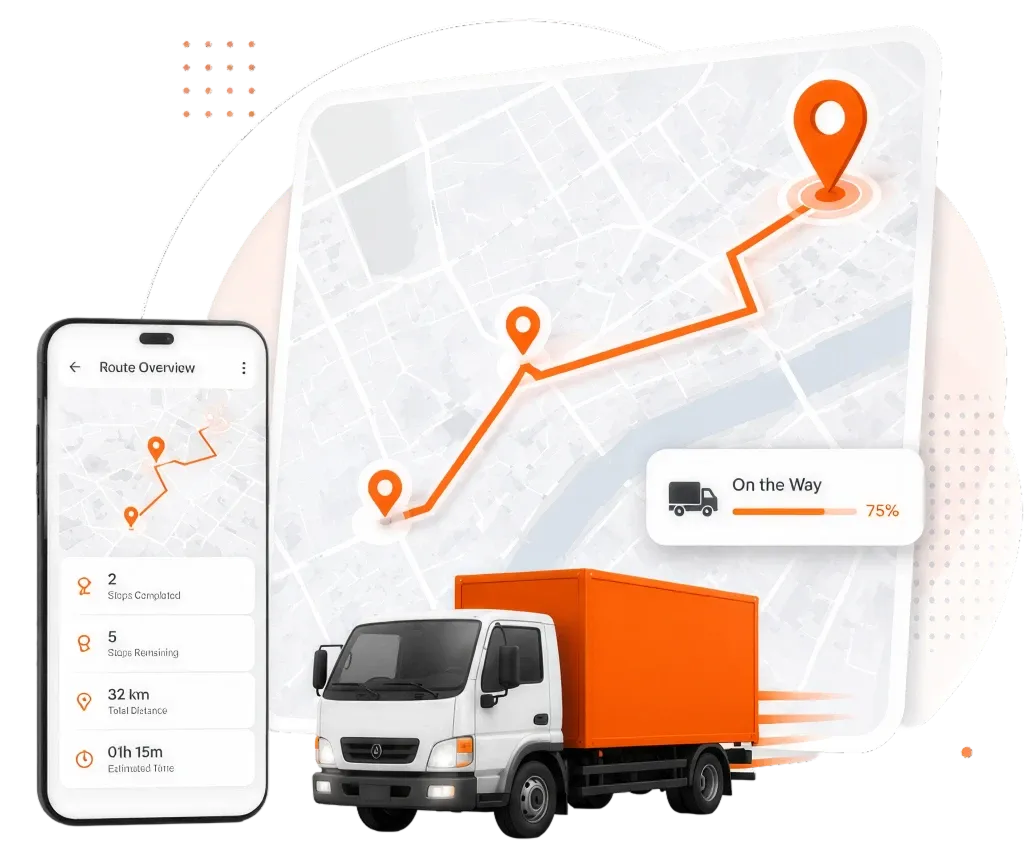
An intelligent Odoo module that automatically assigns delivery orders to drivers and generates the smartest, fuel-efficient routes using Google Maps integration.
Select your sales orders, click Optimize, and watch orders distributed across your fleet, with full map visibility and manual override whenever you need it.
Founded
Professionals in our Team
Clients Served
Countries on Global Map
From automatic driver assignment to visual route maps, the plugin turns your sales orders into optimized delivery runs with no spreadsheets, no guesswork, and no third-party tools.
Seamless integration with Google Maps for accurate routing and route visualization.
Intelligent algorithms calculate the most efficient, fuel-saving delivery routes in one click.
Orders are assigned to drivers automatically based on proximity and capacity.
Manage your entire fleet, including vehicles, categories, and driver assignments within Odoo.
Works directly with Odoo sales orders; select orders and optimize; no re-entry needed.
Display every driver's route and all stops visually on an interactive map.
Override automatic assignments and reassign orders to any vehicle when needed.
Optimize routes for multiple drivers and vehicles simultaneously.
Track order status, picked products, and delivery progress in real-time.
Once you have downloaded the "Route Optimization" plugin, it will appear in your main Odoo dashboard.
From the Odoo apps grid, open Route Optimization (the compass/map icon). It sits beside the rest of the Delivro suite: Driver App, Fleet, and Field Service. If you open Route Planning instead, that's the old module; close it.
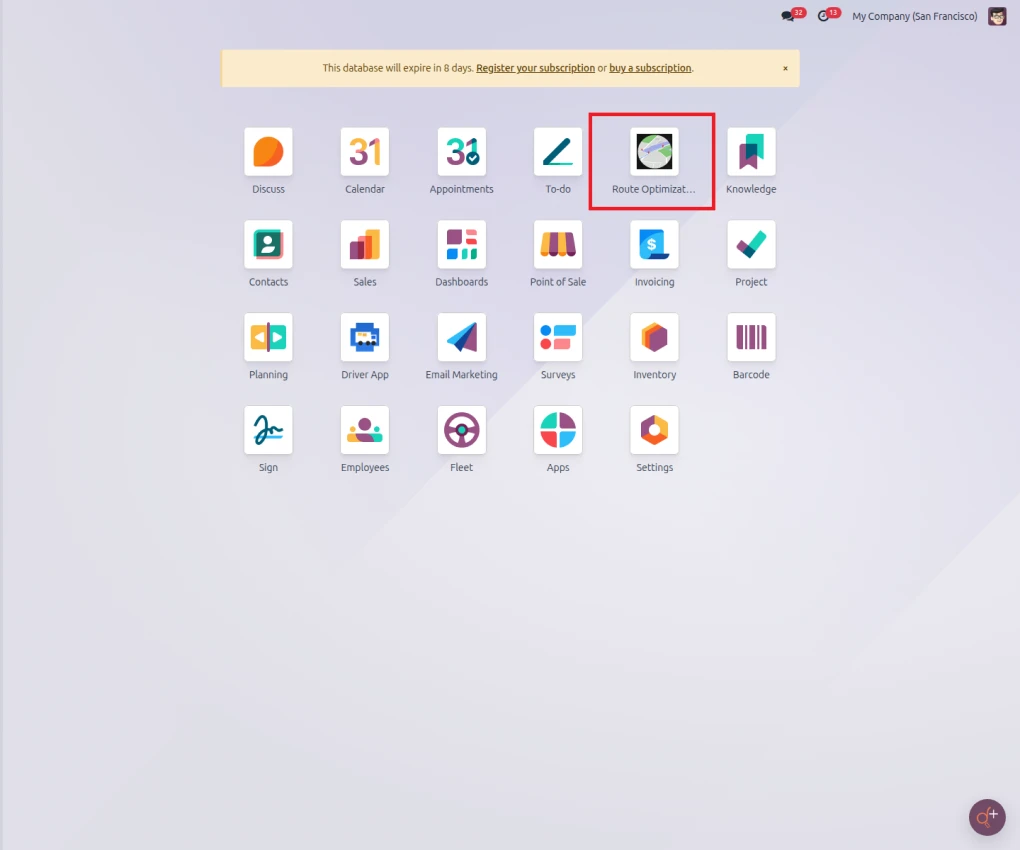
Apps grid, Route Optimization (top row) alongside Driver App and Fleet. (The amber top banner is just a license-renewal reminder on this staging server: the database is active.)
Every stop needs coordinates. Open the customer contact, set a valid Address, and confirm the map pin lands correctly. No coordinates = the job is dropped with reason bad_coords.
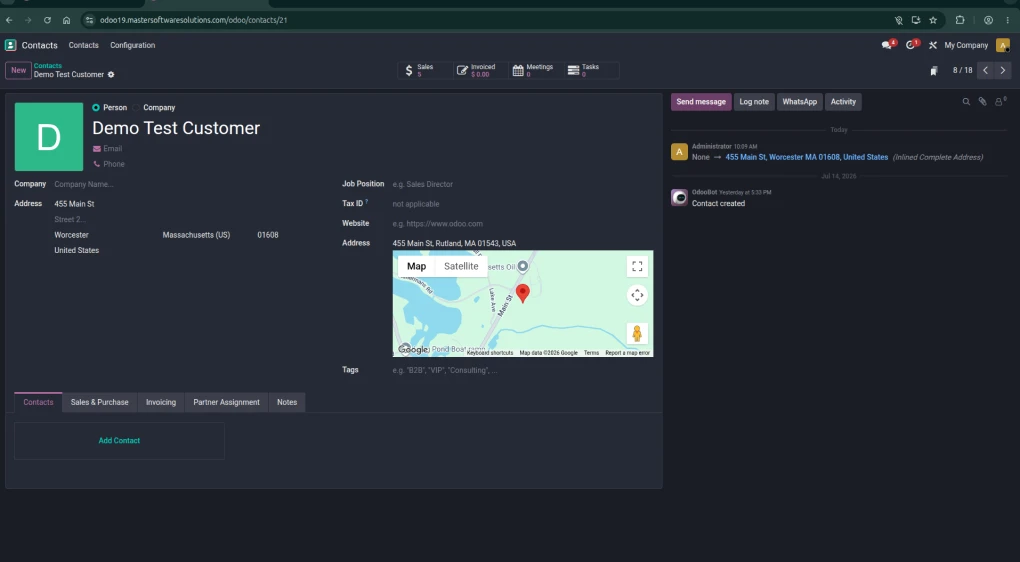
Contact with a real map pin: the optimizer reads this contact's latitude/longitude.
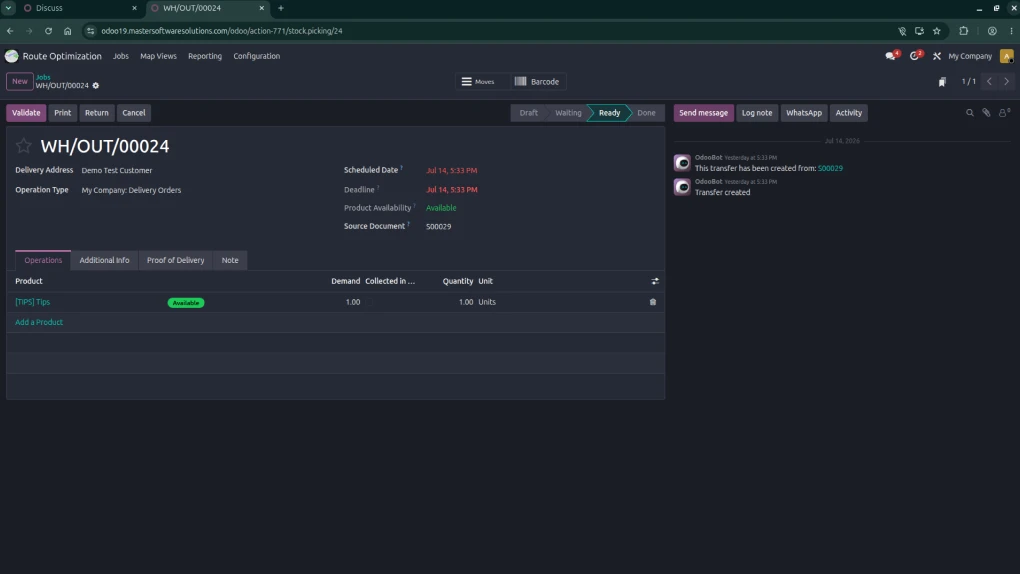
The outgoing delivery must be in the ready state with its scheduled date set to today. Orders dated before/after today, or with no date, are excluded.
At least one fleet. vehicle in Fleet state registered, with a start warehouse (or its own coordinates) and a Driver assigned.
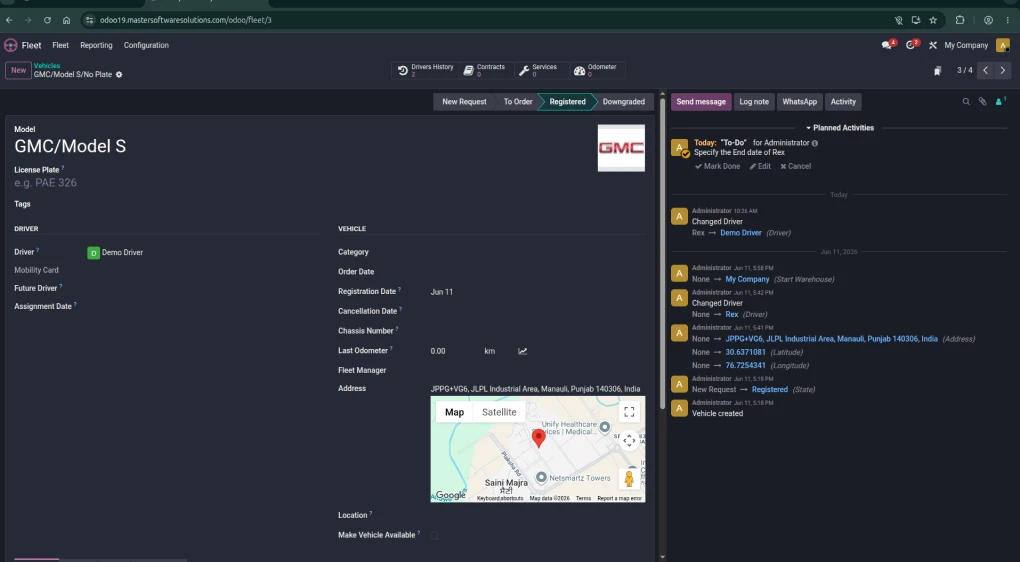
Fleet vehicle with a driver set and state-registered.
In the app, Delivery Orders › Jobs is the work list. Every routable job is one row, grouped by Vehicle (filtered to Today by default: remove that filter to see other days). Pickings are pulled in automatically by a background job every 2 min.
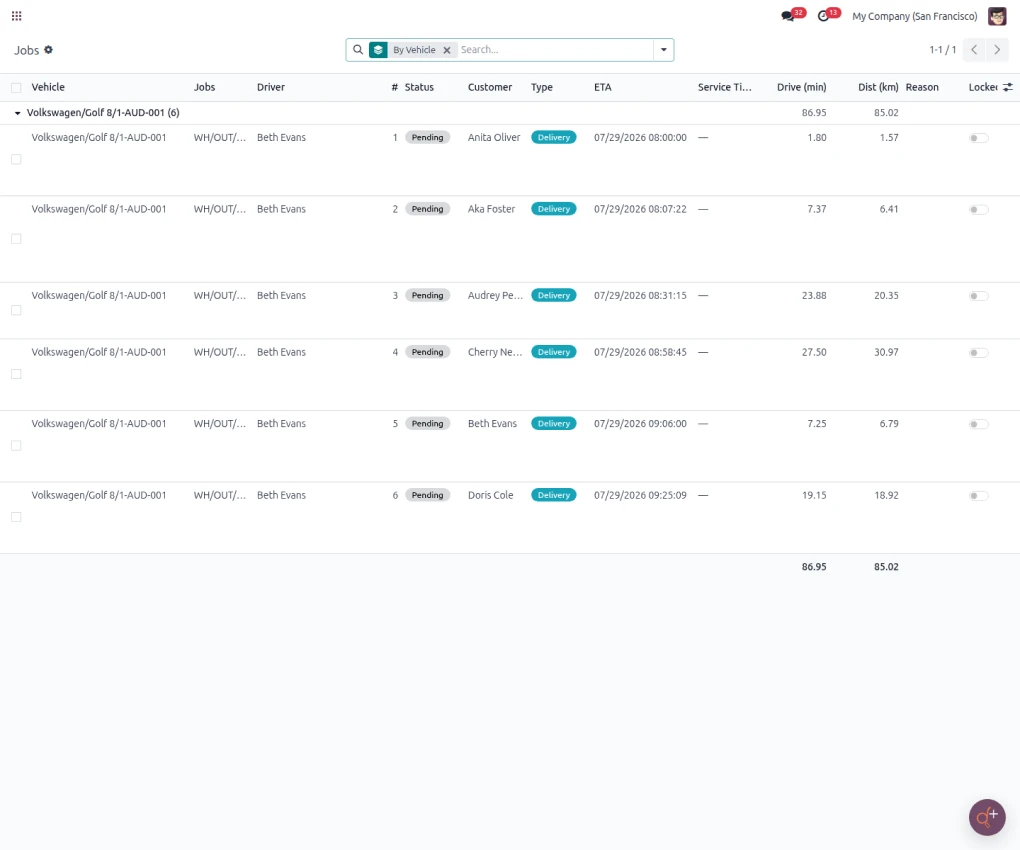
A real route in the Jobs list — vehicle Volkswagen/Golf 8 (AUD-001), driver Beth Evans, 6 stops sequenced 1→6 with per-stop Status, Customer, Type, ETA (08:00→09:25), Drive and Dist; the group totals 86.95 min / 85.02 km.
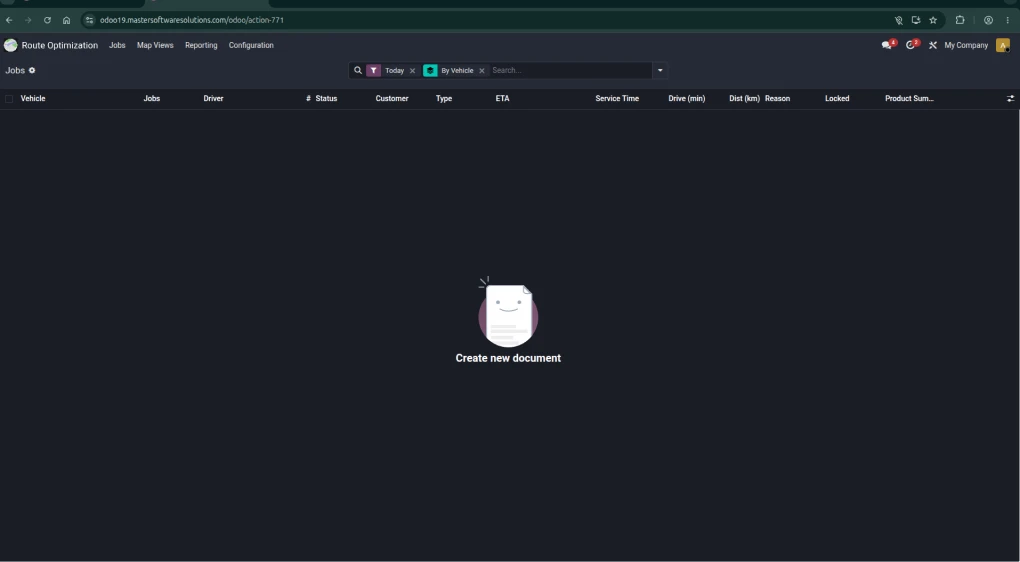
The Jobs columns (Vehicle, Driver, #, Status, Customer, Type, ETA, Drive, Dist, Reason) with the default Today filter: a fresh day starts empty until you optimize.
The Optimize control lives on the Map Views screen, in the Summary / Filters panel: Optimize, Force Re-Optimize, and Confirm & Notify. Press Optimize: the plugin gathers today's ready deliveries, planned field-service tasks, and registered vehicles, sends them to the routing engine, and writes back one route. Unified Step per stop (vehicle, sequence, ETA, drive time, distance).

The Optimize / Force Re-Optimize / Confirm & Notify buttons in the Map Views panel, with the usage-credit counter and the Total Distance / Travel Time / Vehicles / Jobs summary tiles.
The Jobs list reloads: each vehicle group is a complete route in stop order, with ETA / drive time/distance per stop (see step 4). A banner confirms, "Unified route optimization complete. " Jobs that couldn't be placed stay in the None group with a reason.

A completed plan: jobs assigned to a vehicle and sequenced with ETAs.
The Map Views menu shows the whole plan on a map: each vehicle's route as a colored polyline, live stop positions, and summary tiles (distance, travel time, vehicles, and jobs). It's also where the Optimize controls live (step 5).
Map Views: the top menu (Jobs · Map Views · Reporting · Configuration), the summary tiles, the Optimize panel, and the map.
Reporting holds Delivery Orders, Field Service, Route Plan, and Route History. The Route Plan lists every stop (Day, Route, Seq, Customer, Stop, Type, Unassigned, Reason); Route History is a frozen snapshot of each optimize run.

Reporting › Route Plan: the same VW Golf route: 6 stops with Day/ETA, Seq, Customer, Stop (customer + WH/OUT reference), and Type.
Settings holds the plugin's config; Configuration › Route Skills defines vehicle skills. The Settings blocks are Route Polyline & Cost Control (polyline provider + optimize cache window) and Map View Tuning (map poll intervals + collapse threshold).

Route Polyline & Cost Control: Polyline Provider (VROOM free / Google Directions paid) and the No-Change Optimize Skip Window (60 min).
Map View Tuning: live-position poll (10,000 ms), partner-marker poll (5,000 ms), timeline collapse threshold (15).
Inefficient routes, manual assignment, and poor visibility quietly drain time and money from delivery operations. The Route Optimization plugin replaces all of it with intelligent automation inside Odoo, so every route is planned in seconds, not hours.
Intelligently optimized routes minimize mileage, fuel consumption, and unnecessary trips.
The most efficient routes are assigned automatically, ensuring quicker order fulfillment.
Workloads are distributed smartly across drivers, maximizing productivity and reducing idle time.
Precise routing and optimized scheduling improve delivery accuracy and reliability.
Streamlined routes, resources, and planning cut your logistics overhead.
Deliveries that are on time, transparent, and reliable earn long-term customer trust.
See the Route Optimization plugin turn your sales orders into optimized, fuel-efficient delivery routes on a live Odoo system. Book a personalized demo or try the live preview today.
mss_route_optimizationmss_timepicker
Discover the Route Planning Plugin Odoo for enhanced delivery efficiency with versions 16.0, 17.0, and 18.0.
Continue Reading