 Are you a new Odoo user trying to understand various modules? It’s not easy at the start. Odoo has many modules, and each one comes with its own menus, tabs, and settings, which leaves most new users guessing for the first few weeks.
As a new user, you don’t know where to click to create a quotation, how to set up a workflow, or which app to install first. Mostly, the user gets stuck here on day one, and many give up before they even feel comfortable. To fix this. OdooLens Plus is a user guidance plugin that helps users build a basic understanding of the modules & their workflows. No manuals to read, no guessing, just clear steps every time.
What is OdooLens Plus
OdooLens Plus is a user guidance plugin for Odoo. Instead of leaving new users to explore modules on their own or go through documentation, UserFlow works like a built-in coach. Users type their questions into a chat window, and UserFlow answers with clear, step-by-step instructions for the exact module and task they’re asking about.
How OdooLens Plus Works
Here, we will go through the step-by-step working of OdooLens Plus, from the moment you open it for the first time to the point where you can handle any module with confidence.
First Launch: The Welcome Tour
The first time a user opens OdooLens Plus, a short “Welcome” tour pops up. It introduces the chat assistant and explains that it understands plain, everyday questions about using Odoo.
Learning a Module: Ask Instead of Search
When the user is unaware of any of the modules, i.e, sales, inventory purchase, etc., and does not know what questions should be asked. OdooLens Plus is there to help you. For example, you type sale & OdooLens Plus creates some specific questions specific to sales that help users to create a hook to move further.
The Questions will be:
- What’s the difference between a quotation and a sales order? How do I create a sales order?
- Where can I see my pending quotations?
- What happens after a customer accepts a quotation?
- How do I add a discount to an order?
- Can I edit a sales order after it’s confirmed?
Instead of guessing at the right phrasing, the user picks the closest match and moves straight into an answer.
Walking Through a Task, One Step at a Time
In this use case, when the user asks something specific, like “How do I create the purchase order ?” OddoLens will generate the answers via the OdooLens Plus plugin integrated in it, & provides information step by step for better understanding.
- Open the Purchase app.
- Go to Orders / Requests for Quotation.
- Click New.
- Select the Vendor.
- Optionally set the Order Deadline and Expected Arrival date.
- Under Order Lines, click Add a line and select the products, quantities, and prices.
- Optionally update Terms and Conditions.
- Click Save.
- Click Send by Email if you want to send the request for quotation to the vendor.
- Once the vendor confirms, click Confirm Order to turn it into a purchase order.
If you want to walk through every task in the purchase order, OdooLens Plus creates a “show me” button to perform the task step by step. Walking through the process doesn’t just tell the user what to read; it shows them exactly where to click.
Handling Modules That Aren’t Installed Yet
Not every new user has every app installed, and OdooLens Plus plans for that. If someone asks about a module that isn’t active yet, like finance, it gives simple installation steps instead of an error message:
- Open the Apps menu.
- Search for “Accounting.”
- Click Activate on the Accounting app card.
- After it installs, refresh the page (F5).
Once it’s installed, OddoLens will generate the answers via the OdooLens Plus plugin to guide the user through finance right away.
OdooLens Plus Diagram for Sales Module
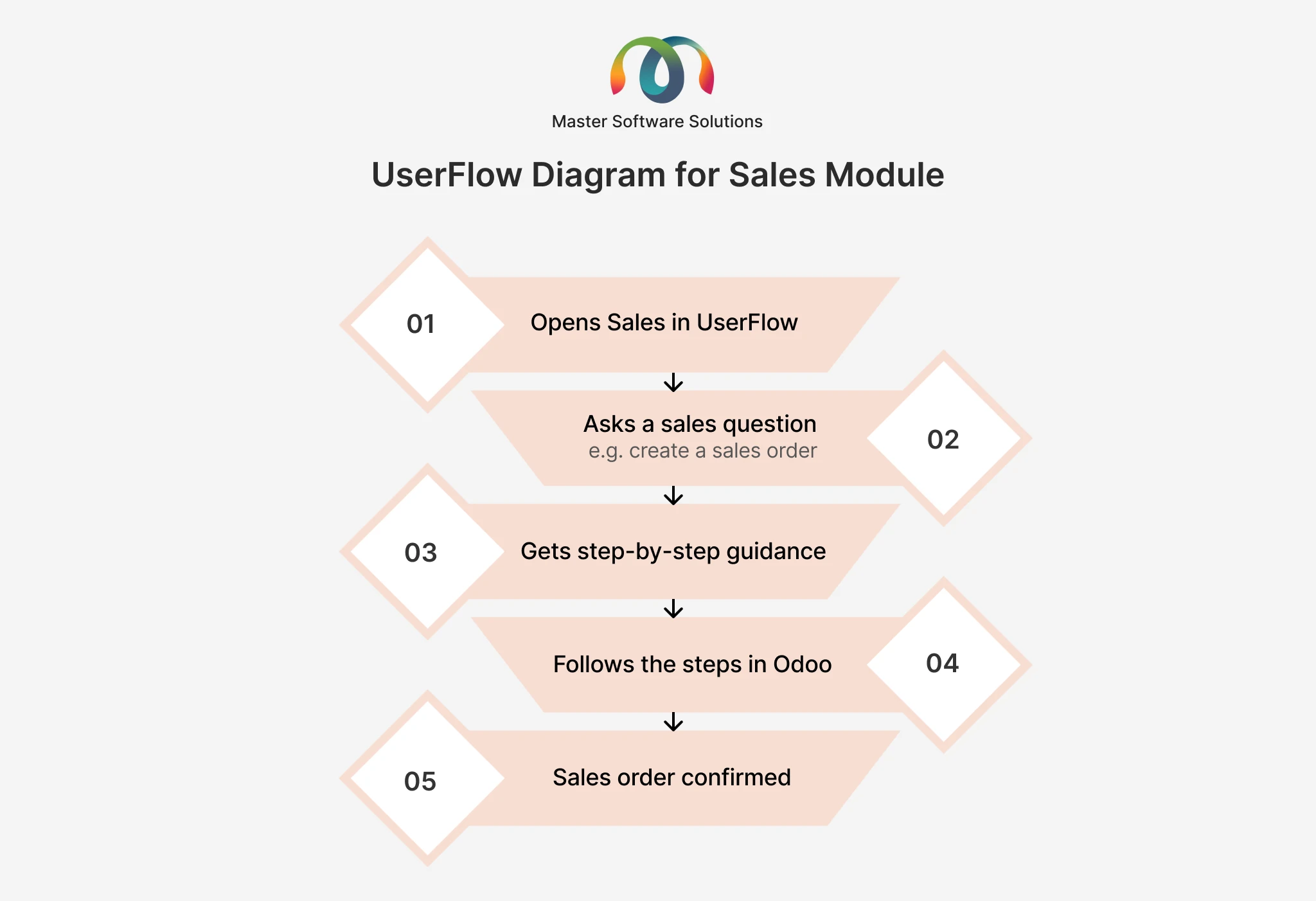
Just like Sales, OdooLens Plus guides you through every other module in the same way. Ask about Purchase, Inventory, Finance, CRM, or Reporting, and you’ll get the same clear, step-by-step instructions to follow.
Benefits of OdooLens Plus
Faster onboarding
New employees don’t need to sit through long training sessions before they can start working. They open OdooLens Plus , ask what they need to know, and get moving the same day. This means new hires become productive in days instead of weeks.
Less strain on IT and support teams
Most beginner questions, like how to raise a quotation or install an app, get answered right inside the chat. IT and support staff no longer have to handle repeated basic tickets, so they can focus on real technical issues.
Consistent guidance every time
Every employee gets the same accurate steps, no matter who trained them or when they joined. This removes the risk of one person learning a shortcut that’s actually wrong, or two people doing the same task in different ways.
Learning by doing
Instead of reading documentation before starting work, users learn while they work. They ask a question, follow the steps, and complete the task at the same time. This makes the learning stick faster than reading a manual in advance.
Works with modules you haven’t set up yet
OdooLens Plus doesn’t stop at the modules you already have installed. If a user asks about a module that isn’t active, OdooLens Plus shows them how to install it first, so there’s never a dead end in the conversation.
Confidence from day one
New users stop guessing which button to click and start acting with certainty. This lowers the number of mistakes made in daily work, like wrong entries or skipped steps, which saves time for the whole team later.
Saves time on training material
Teams don’t need to keep writing and updating internal guides every time Odoo changes. OdooLens Plus answers questions directly, so the plugin itself becomes the always-up-to-date manual.
Scales with your team
Whether you’re onboarding one new employee or fifty, OdooLens Plus gives the same quality of guidance to everyone at once, without needing more trainers or more time from your team.
Stop switching between tools and tabs. From setup to sales numbers, customer records, invoices, and inventory, get it all from one chat inside Odoo.
OdooLens Plus + OdooLens
OdooLens plugin comes along with OdooLens Plus, giving users a clear, foundational understanding of the module and their core Odoo data.
Conclusion
Learning Odoo doesn’t have to feel like extra work. OdooLens Plus guides new users through every module with simple, step-by-step answers, so they always know what to click and why, right from their first login. This leads to faster onboarding, fewer support requests, and a team that actually uses the tools they’ve been given.