Secure Token Authentication
Enterprise-grade encryption with access tokens and secret keys for end-to-end protected communication.
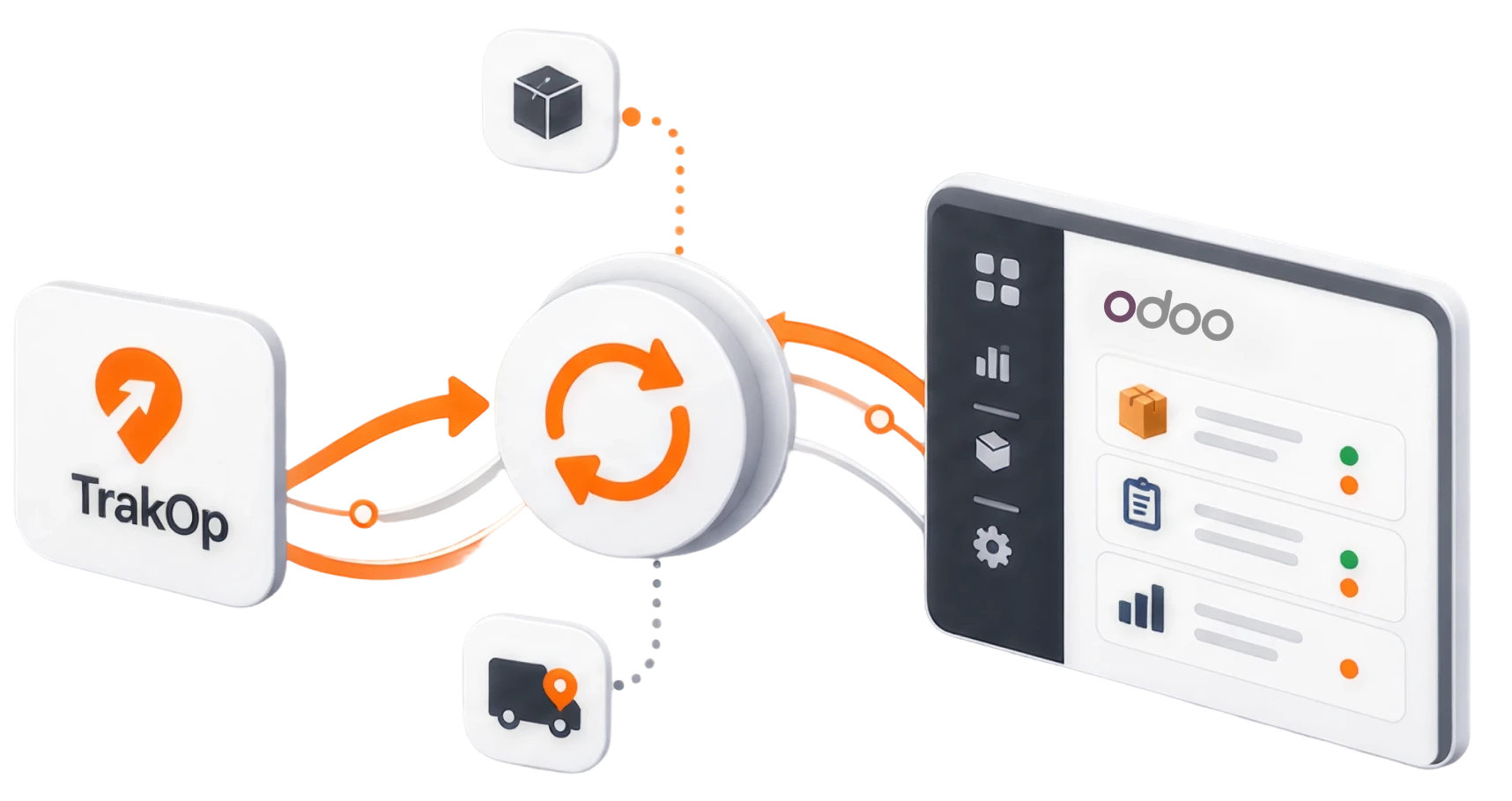
TrakOp Sync automatically synchronizes products, orders, and inventory between TrakOp and your Odoo ERP, bringing TrakOp's route planning, delivery tracking, and stock management into one system.
Secure token-based authentication, real-time updates, and complete activity logs mean no manual re-entry, no stock discrepancies, and no guesswork.
Founded
Professionals in our Team
Clients Served
Countries on Global Map
From secure connection to automated order creation, TrakOp Sync handles the full data journey between your delivery platform and your ERP.
Enterprise-grade encryption with access tokens and secret keys for end-to-end protected communication.
A dedicated TrakOp warehouse is automatically created in Odoo for structured inventory management.
Import all products and their categories from TrakOp into Odoo — no manual entry.
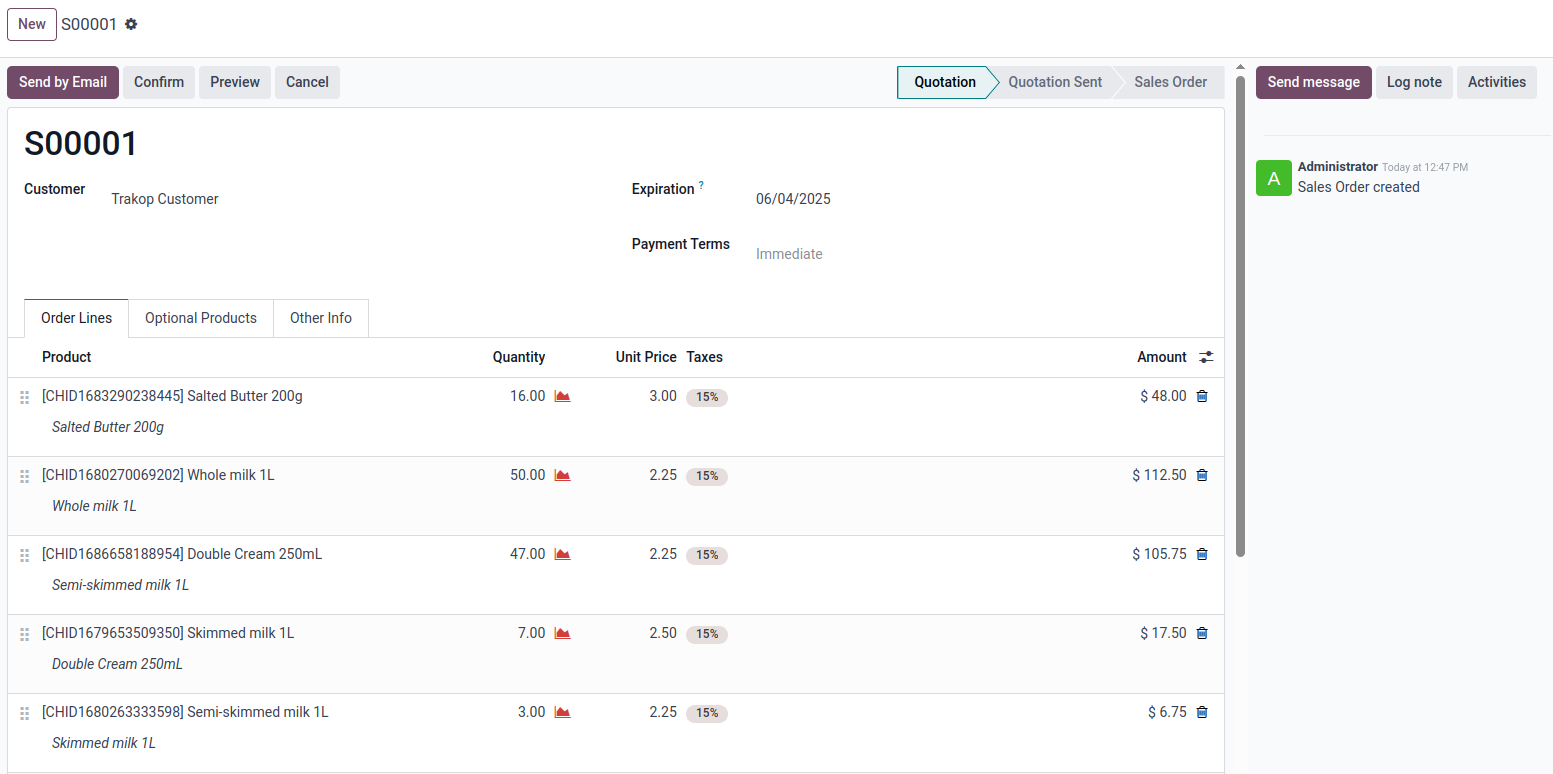
Automatically generates sales orders in Odoo from TrakOp deliveries.
Sync orders based on custom date ranges for full flexibility.
Inventory and order data stay synchronized between systems in real time.
Set up automatic sync schedules for hands-free operation.
Comprehensive logging of every sync, product update, order creation, and error.
Role-based access control for team collaboration.
Connected and syncing in four simple steps, no coding required.
Step 1:Download "TrakOp Sync" from Odoo App Store.
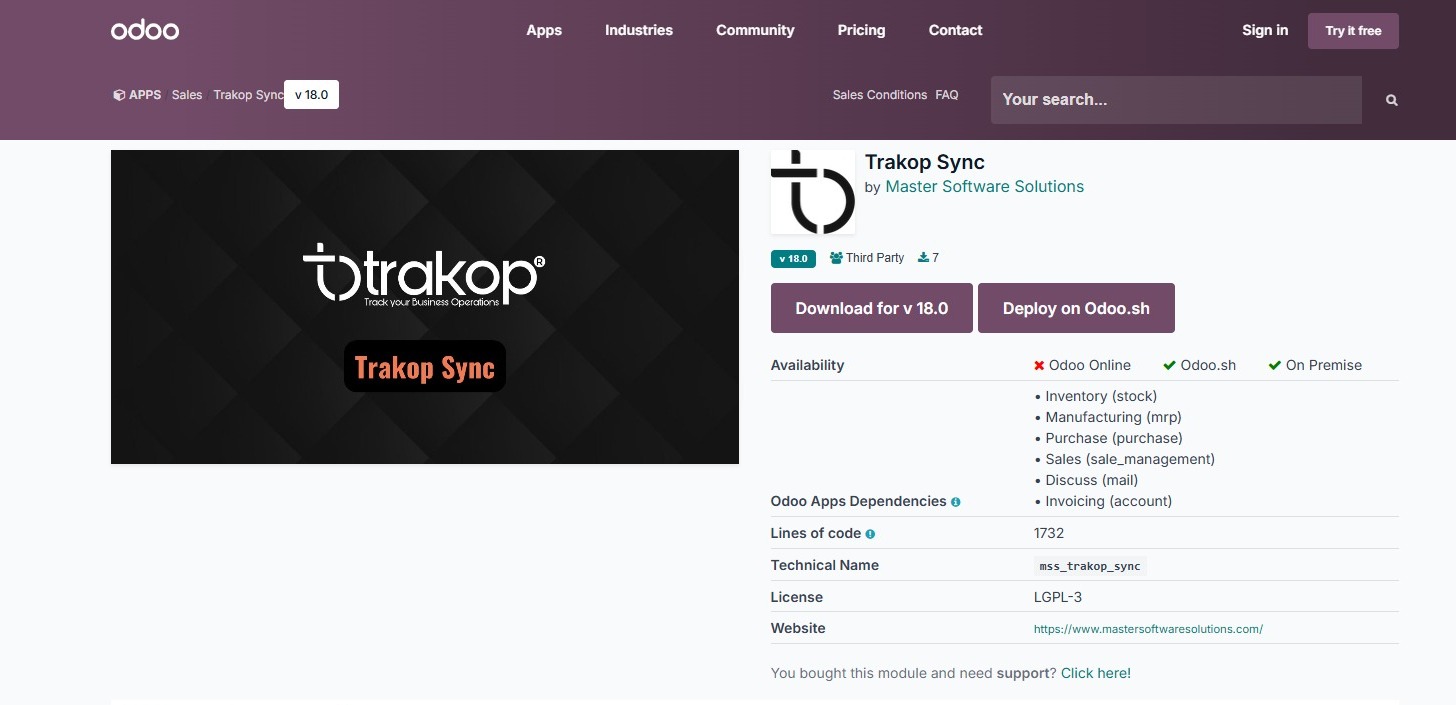
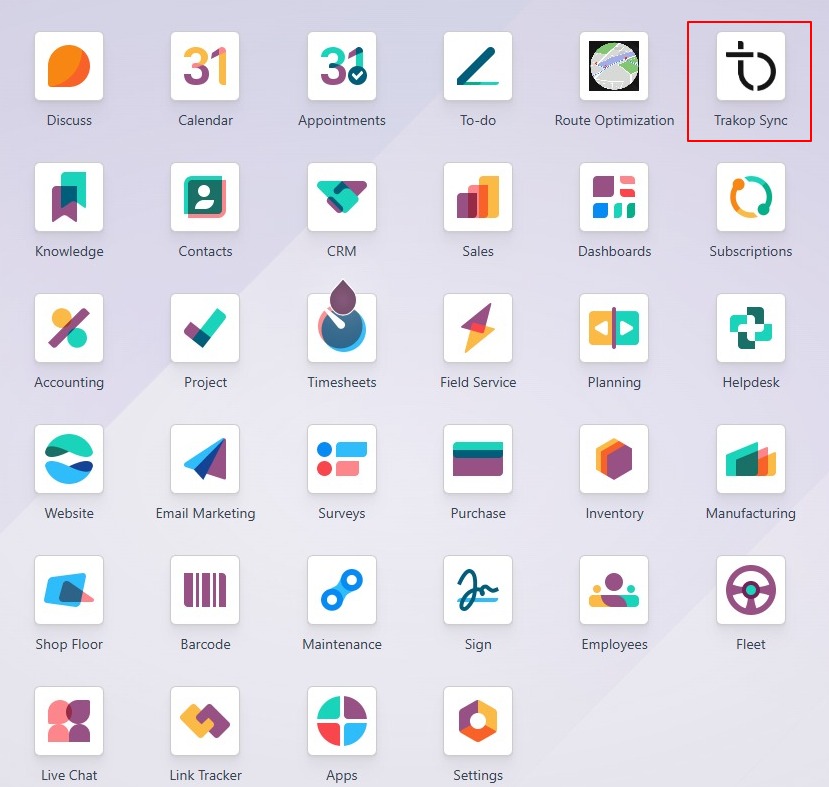
Step 2:Open "TrakOp Sync" from the Odoo dashboard.
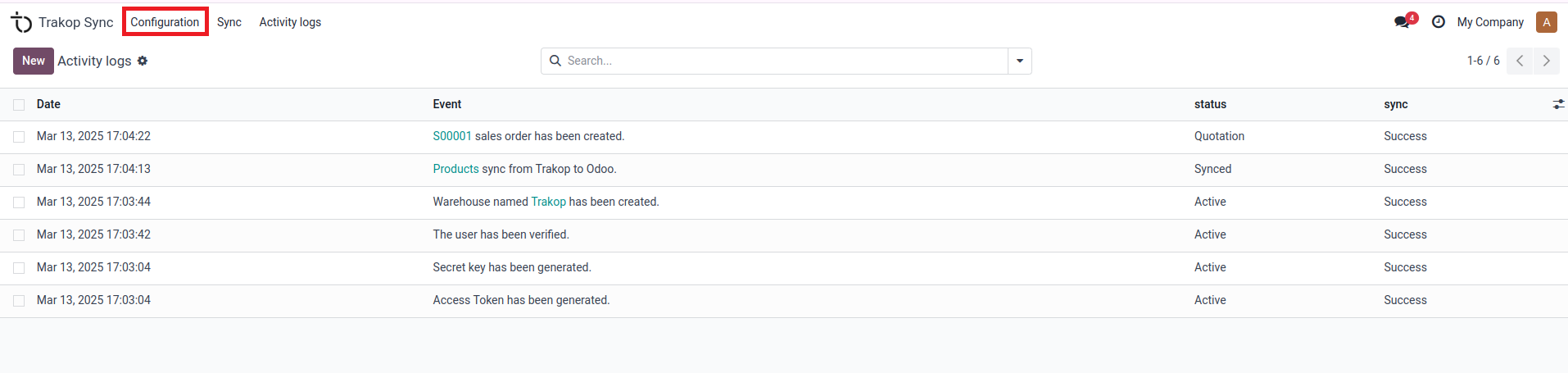
Open Configurations from the menu.
Step 3:Generate Access Token. A secret key will be generated automatically during the access token generation process. You need to copy and paste it into your TrakOp dashboard.
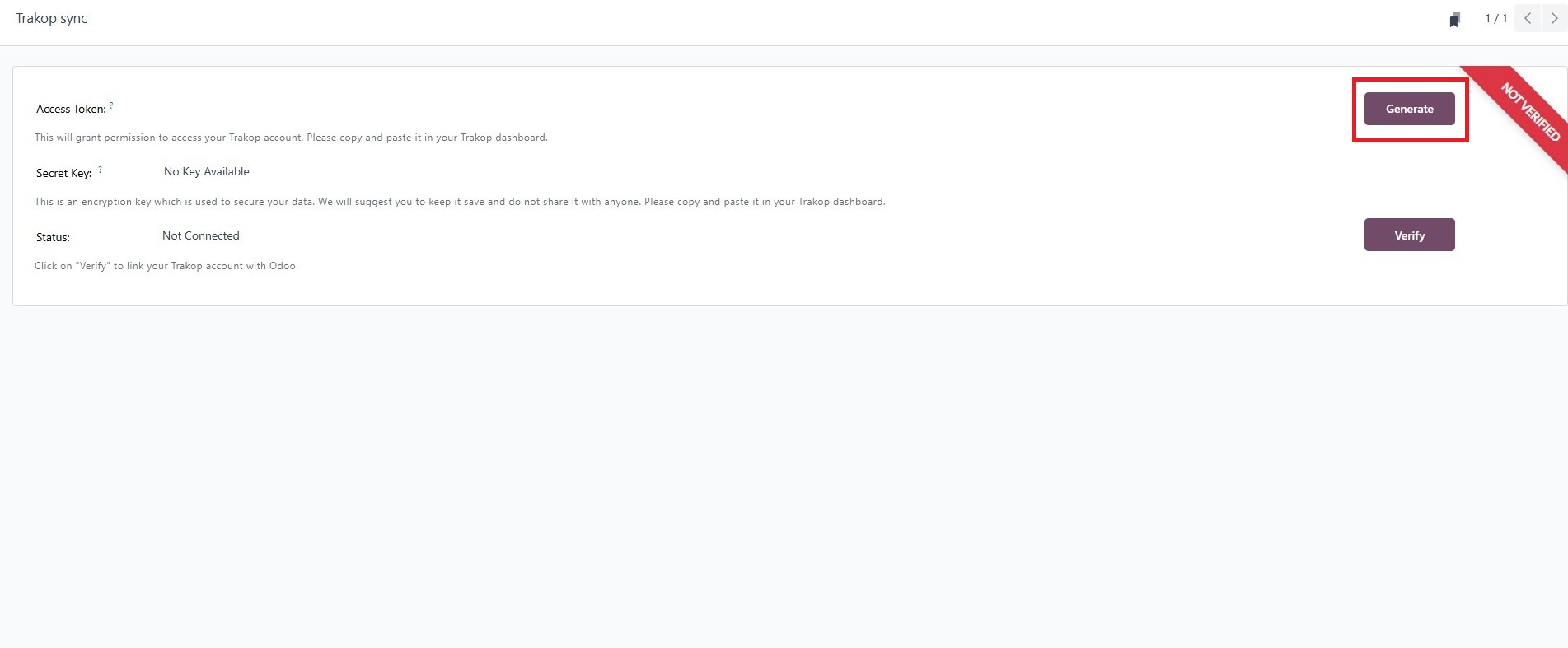
The secret key provides end-to-end encryption, whereas the access token builds a bridge between Odoo and TrakOp.
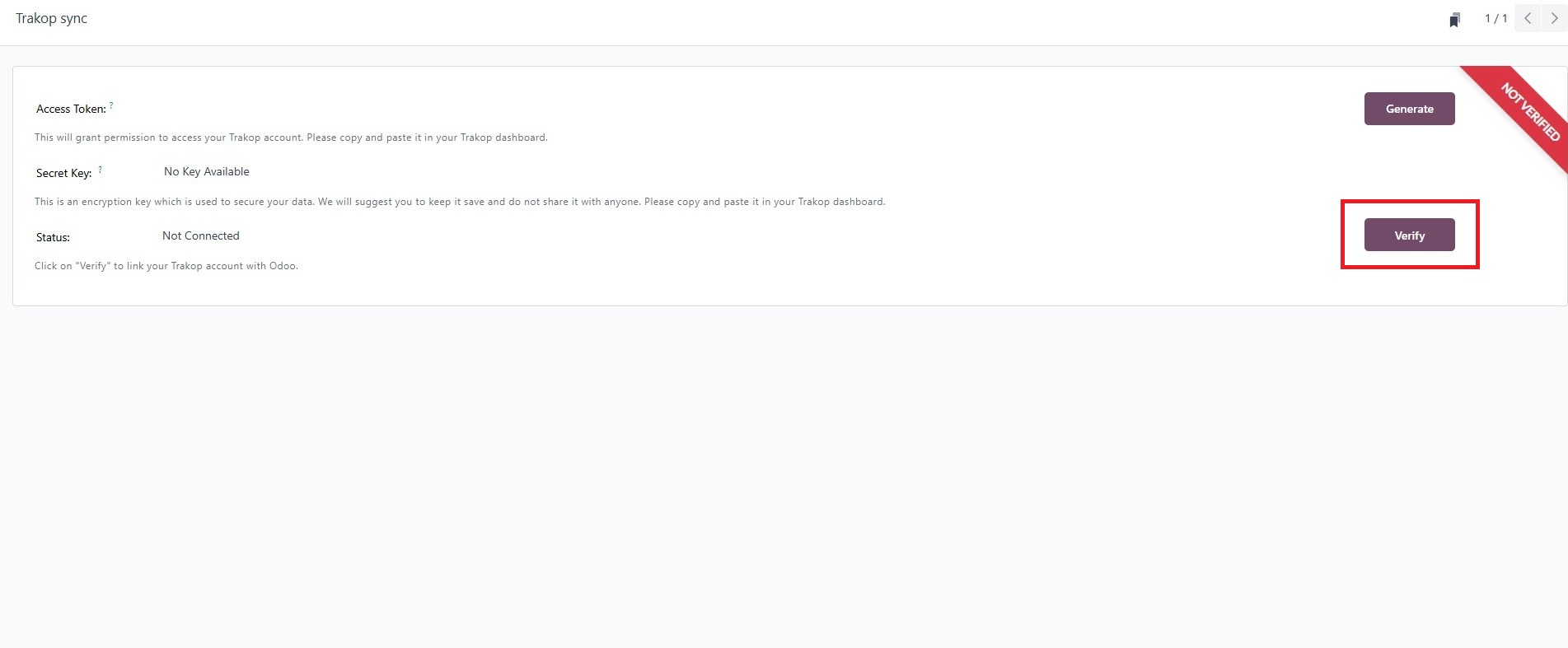
Step 4:Once the Access Token is pasted into TrakOp's dashboard, switch to Odoo's last page and click on "Verify" to verify the connection between Odoo and TrakOp.
Once the connection is established, the status turns from "Not Verified" to "Verified."
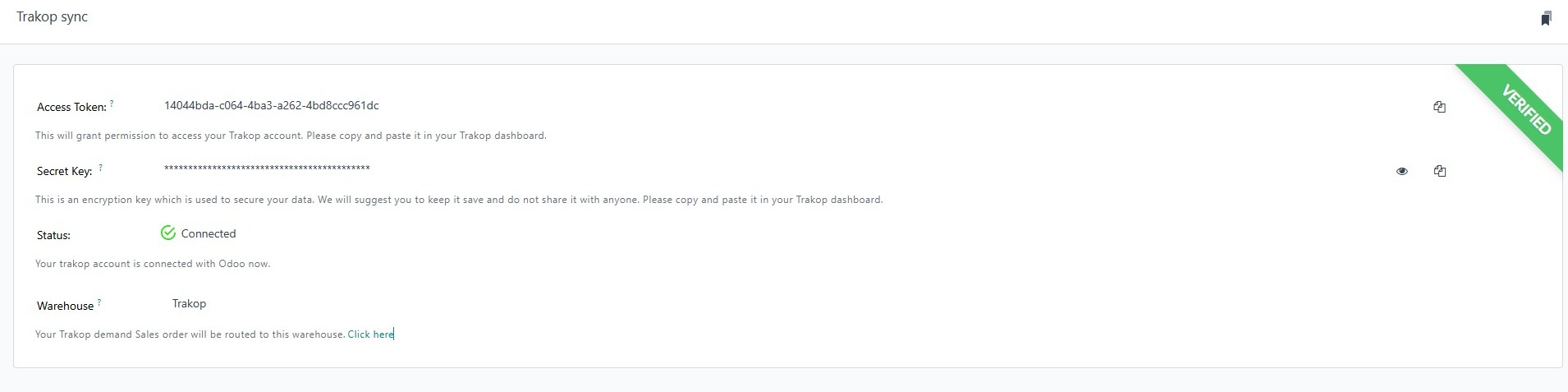
The warehouse will be created.
You can check all your activities from the Activity Logs.

Step 1:You can sync TrakOp's data/products on Odoo by clicking on Sync from the top menu.
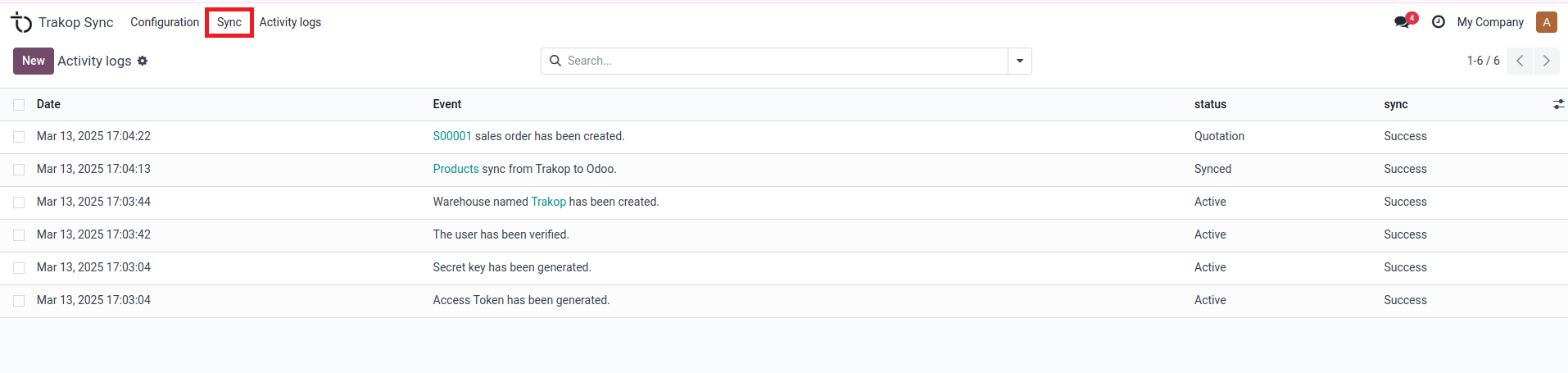
Step 2:Click on the synchronization button.
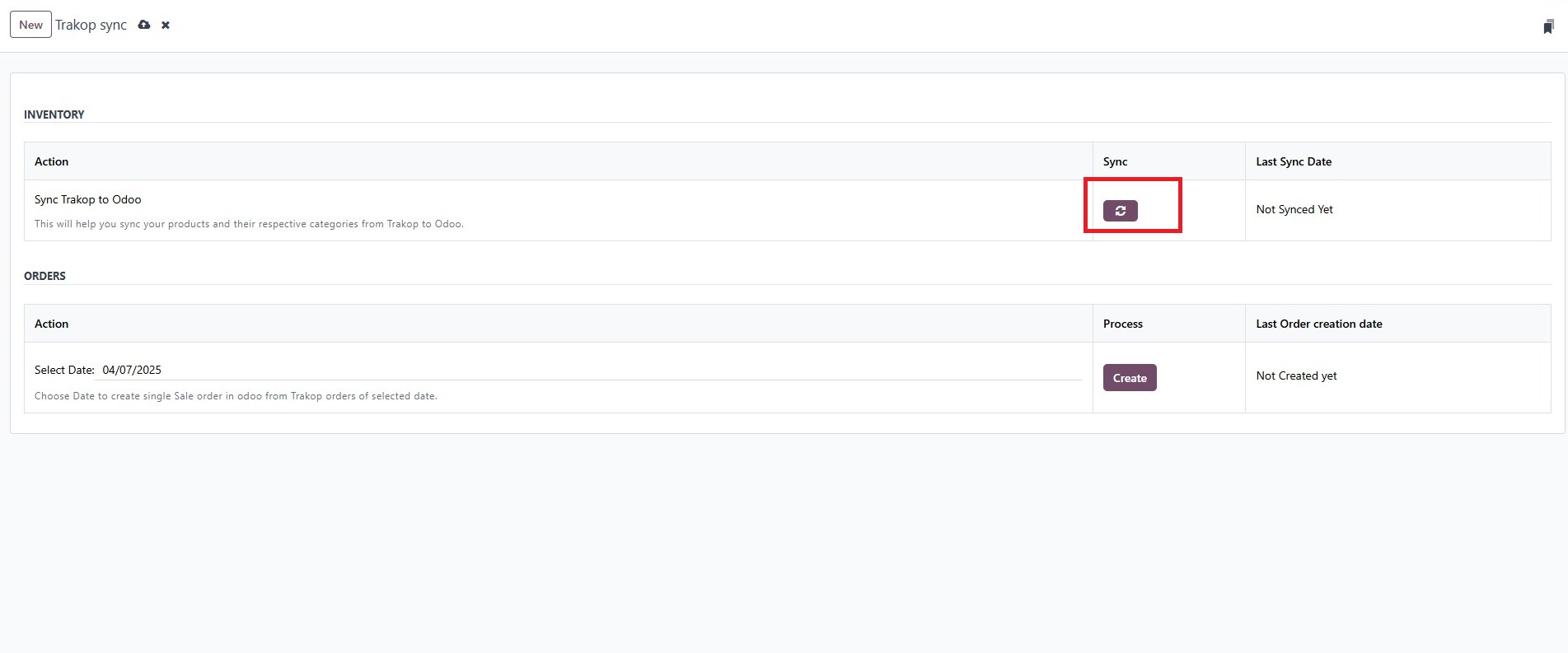
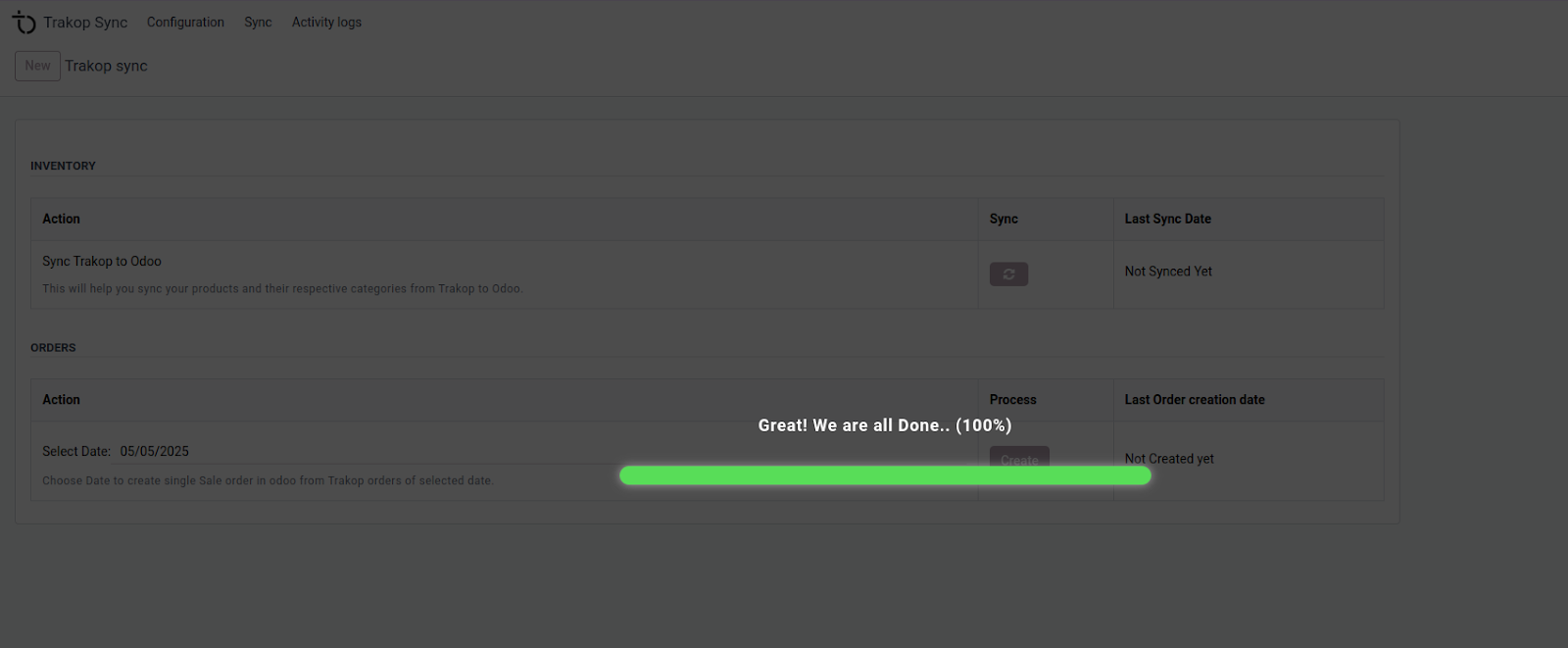
All the categories and products will be synced with Odoo.
You can check activity logs to see your synced products and categories.
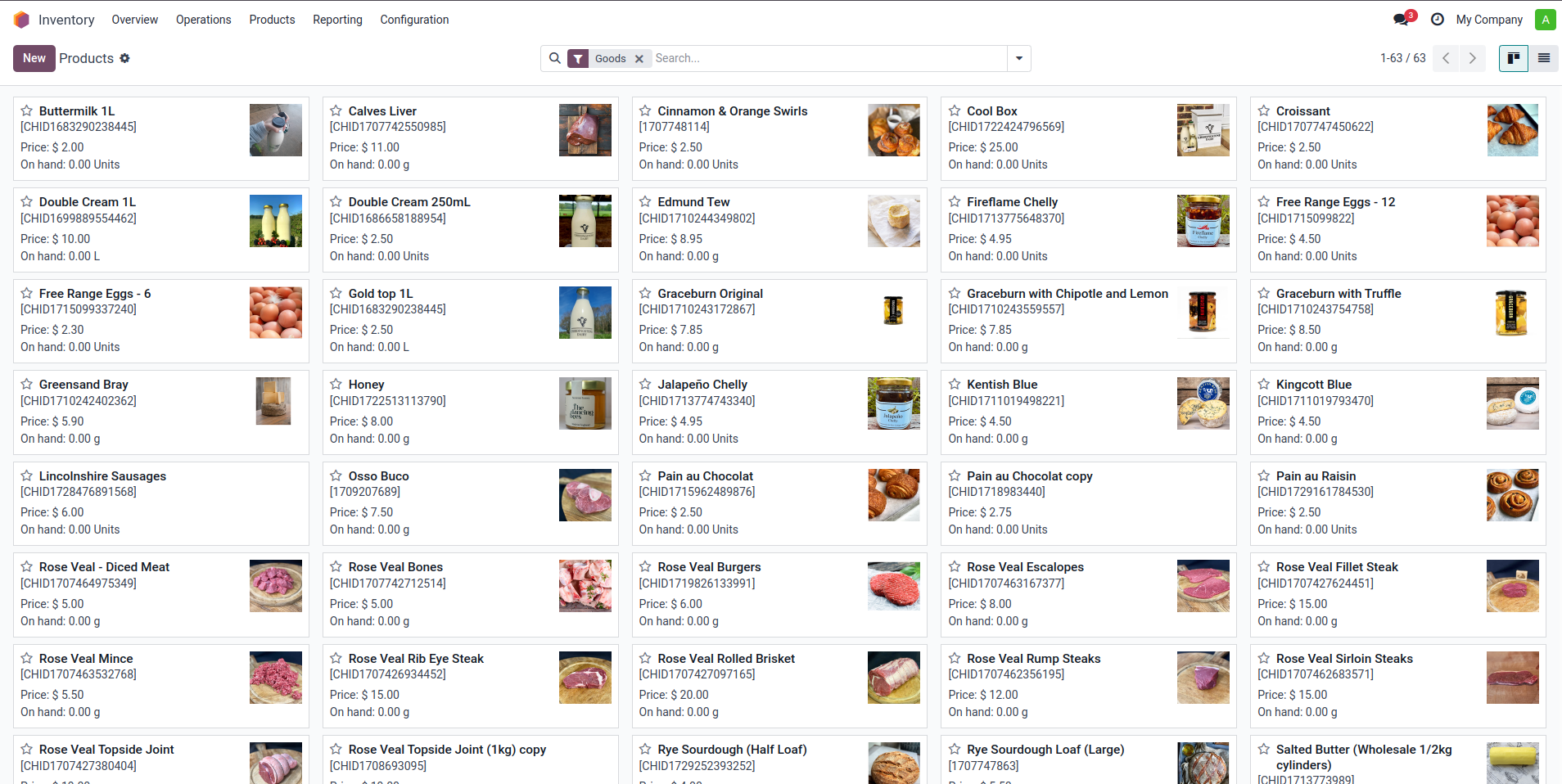
Step 1:Click on the highlighted "Products."

You can view all of your TrakOp products in Odoo Inventory.
Step 1:Click on "Sync" from the menu.

Step 2:Under the Orders section, select the date to create a single sales order in Odoo from TrakOp.
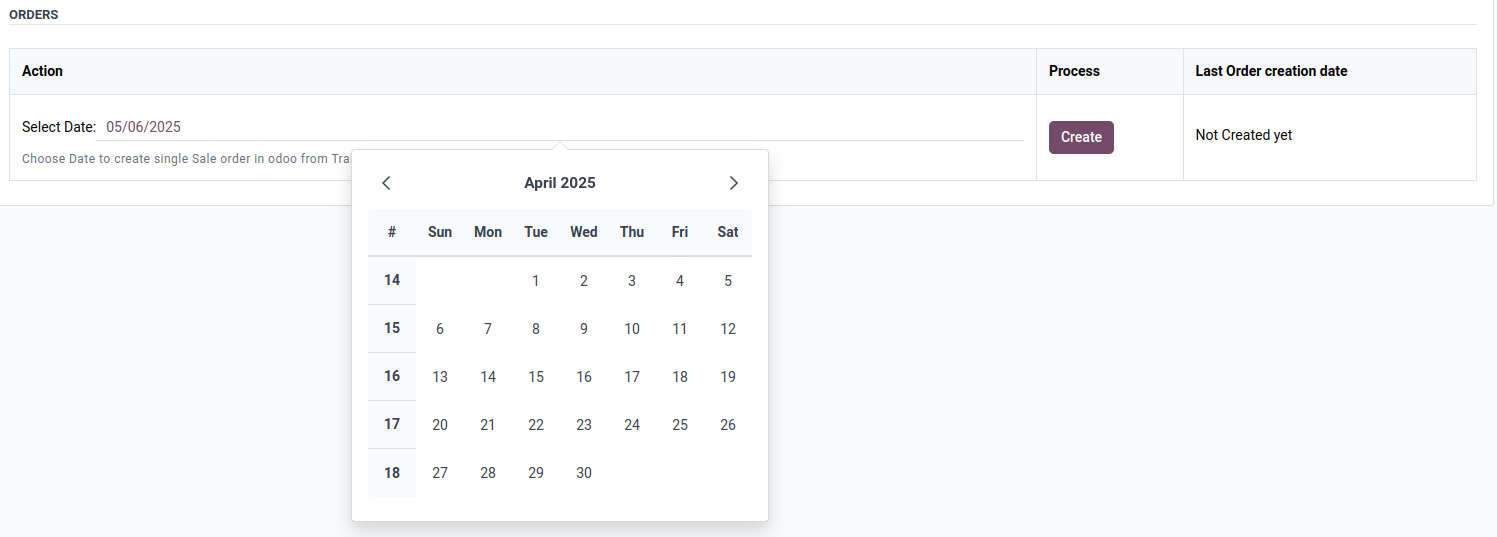
Step 3:Click on the "Create" button.

The sales order is successfully created.
You can check your sales order from the activity logs.
Step 1:Go to the "Activity Logs".
Step 2:Click on the highlighted order number from the latest log.

You can see the order that has been created.
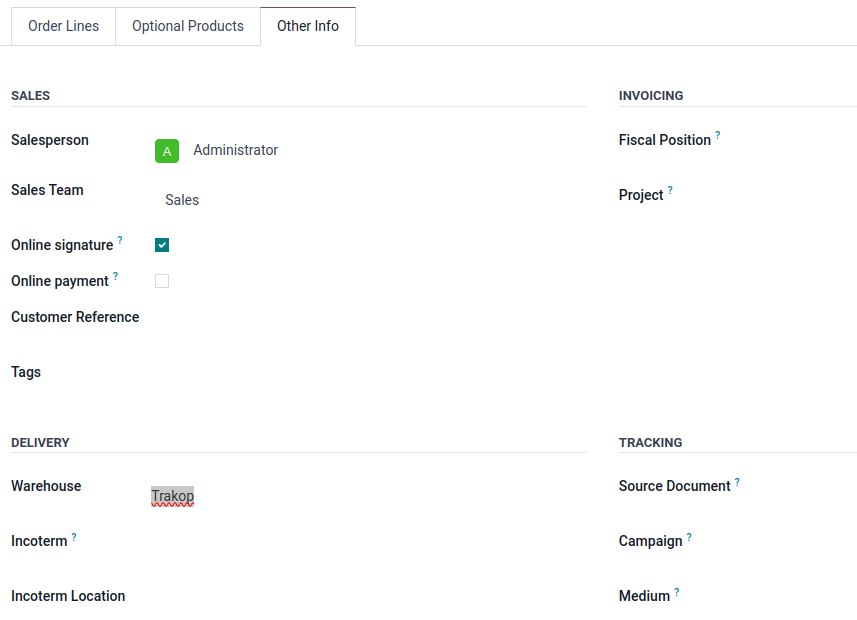
Clicking on other info will show that the demand is made for the warehouse "TrakOp."
Running deliveries in TrakOp and accounts in Odoo shouldn't mean typing everything twice. Manual transfers cost hours, breed errors, and leave inventory out of sync. TrakOp Sync replaces all of it with one secure, automated bridge.
Eliminating tedious manual data entry and automating product, order, and inventory synchronization frees up your staff to work on revenue-generating projects.
Without transcription, expensive errors, or postponed order processing, data moves between systems.
Real-time inventory sync keeps stock levels accurate in both systems, protecting the customer experience.
Activity logs track every sync, product update, and sales order creation, so you always know what moved and when.
The auto-created TrakOp warehouse keeps synced stock cleanly separated and easy to manage in Odoo.
Access tokens and secret keys provide encrypted, verified communication between Odoo and TrakOp.
Watch products, categories, and delivery orders flow from TrakOp into Odoo automatically on a live system. Book a personalized demo or try the live preview today.
mss_trakop_sync