Running a delivery business is rewarding, until your drivers are crisscrossing the city, orders are piling up, and you’re fielding “where’s my delivery?” calls all morning. Sound familiar? If you’re already on Odoo ERP, there’s a smarter way to handle it.
Odoo’s Route Optimization plugin takes the guesswork out of last-mile delivery. It automatically assigns orders to the right drivers, plots the most efficient routes, and gives you a real-time map view of your entire fleet all without leaving Odoo. Let’s break down exactly what it does, how it works, and why your operations team will thank you for it.
The Real Cost of Running Deliveries Without Route Optimization
Before we get into the solution, let’s talk about what’s actually going wrong without it.
Wasted fuel and time. When routes are planned manually, or not at all, drivers end up backtracking across zones, burning fuel and hours that didn’t need to be spent.
Unbalanced workloads. Some drivers finish early, while others are still on the road at 7 PM. Without smart assignment logic, it’s nearly impossible to distribute orders fairly based on location and capacity.
Human errors in dispatch. Manually matching drivers to orders via spreadsheets or phone calls introduces mistakes, like wrong address zones, missed orders, and double assignments.
No visibility into what’s happening on the ground. Without a live map view, managers are flying blind. If something goes wrong, you find out after the fact.
Delayed deliveries and frustrated customers. All of the above add up to late deliveries, missed time windows, and customers who don’t reorder.
For businesses running 20, 50, or 200+ daily deliveries, these inefficiencies compound fast. And in industries like milk delivery, grocery, or pharmacy, where reliability is everything, they can cost you customers you can’t afford to lose.
What the Route Optimization Plugin Actually Does
The Route Optimization plugin for Odoo is built specifically for businesses that need to move goods from one warehouse to many customers efficiently, daily, at scale.
Here’s what it brings to the table:
Automatic Route Optimization
Hit one button, and the plugin distributes all your pending sales orders across available drivers, clustering deliveries by proximity so no one is driving across town unnecessarily.
Manual Override Capability
Auto-optimization doesn’t lock you in. You can manually reassign any order to any vehicle when you need to make exceptions for a VIP customer, a driver swap, or last-minute changes. Manual assignments are flagged and respected; the auto-optimizer won’t override them.
Interactive Map View
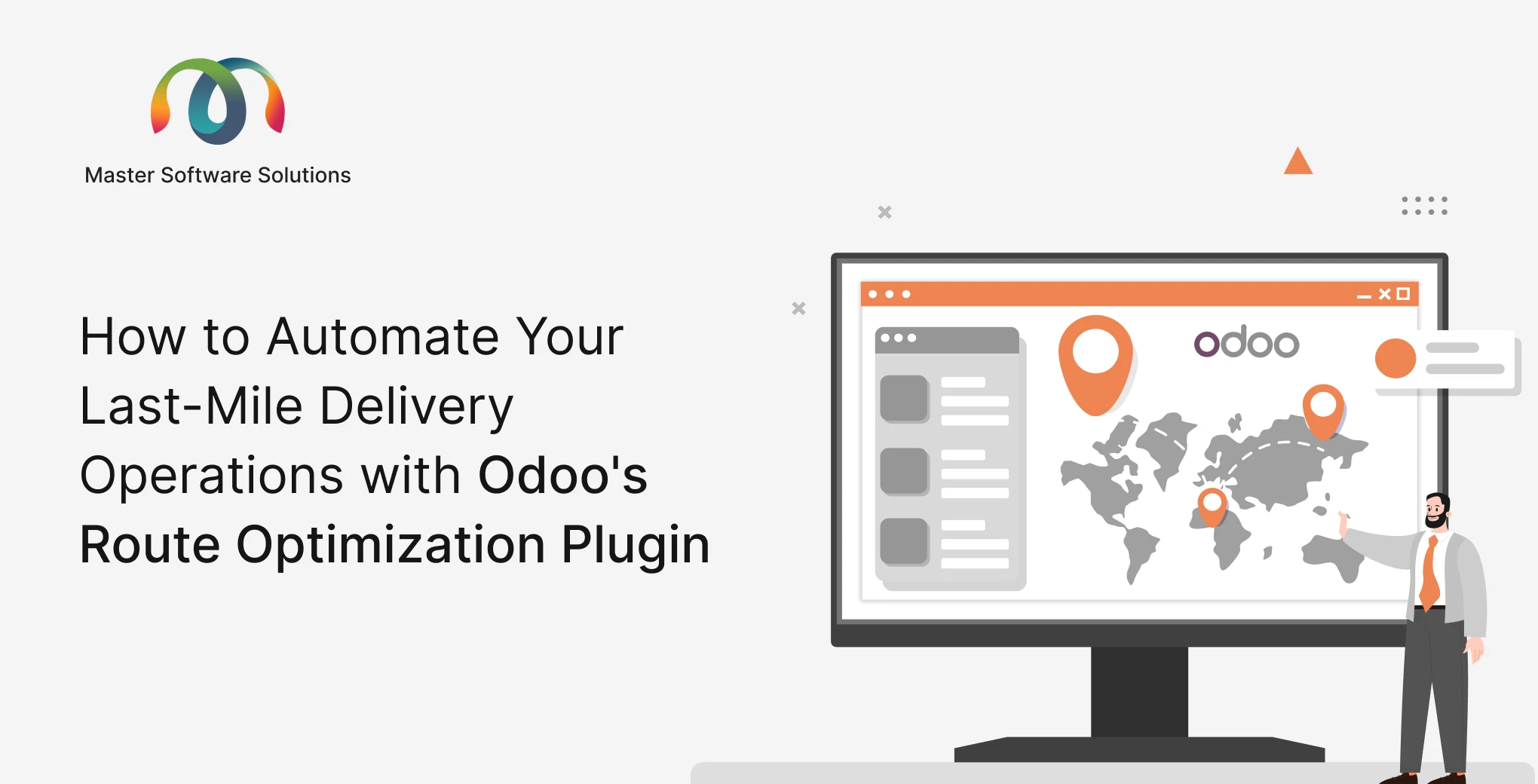
Switch to map view to see your entire fleet’s delivery routes visualized. Click on any driver to see exactly where they’re going and in what order.
Google Maps Integration
The plugin connects to Google Maps via API, giving you accurate geolocation for every customer address, reliable distance calculations, and turn-by-turn route reliability.
Driver Management
Create driver profiles directly in Odoo under Users & Companies, set their login credentials for the driver app, and assign vehicles to them all in one place.
Fleet Management
Register vehicles with model details, type, and category. Only “Registered” vehicles are considered available for delivery assignments, so your active fleet is always clean and current.
Driver App Access
Once assigned, drivers see their deliveries directly through the app using credentials you set. No phone calls, no printed lists.
The Benefits You’ll Actually Feel
Getting route optimization right isn’t just an operational win — it has a ripple effect across the whole business.
Faster Deliveries
Shorter, smarter routes mean drivers complete their runs in less time. That opens the door to more deliveries per driver per day without burning anyone out.
Lower Fuel Costs
Optimized routes eliminate unnecessary mileage. For a fleet of 10 vehicles making 30 deliveries each, even a 15% reduction in distance driven adds up to serious savings over a year.
Better Customer Experience
Tighter delivery windows and on-time arrivals build trust. Customers who can count on you are customers who stay with you.
Less Admin Work for Your Dispatch Team
What used to take an hour of manual planning each morning can happen in seconds. Your team can focus on exceptions and escalations instead of logistics puzzles.
Real-Time Control
Managers finally have visibility into what’s happening on the ground. If a driver is behind or a zone needs rebalancing, you can act on it immediately rather than discovering it at the end of the day.
Scalability
Whether you’re handling 50 orders or 500, the plugin scales with you. You’re not adding more dispatchers; you’re adding smarter tooling.
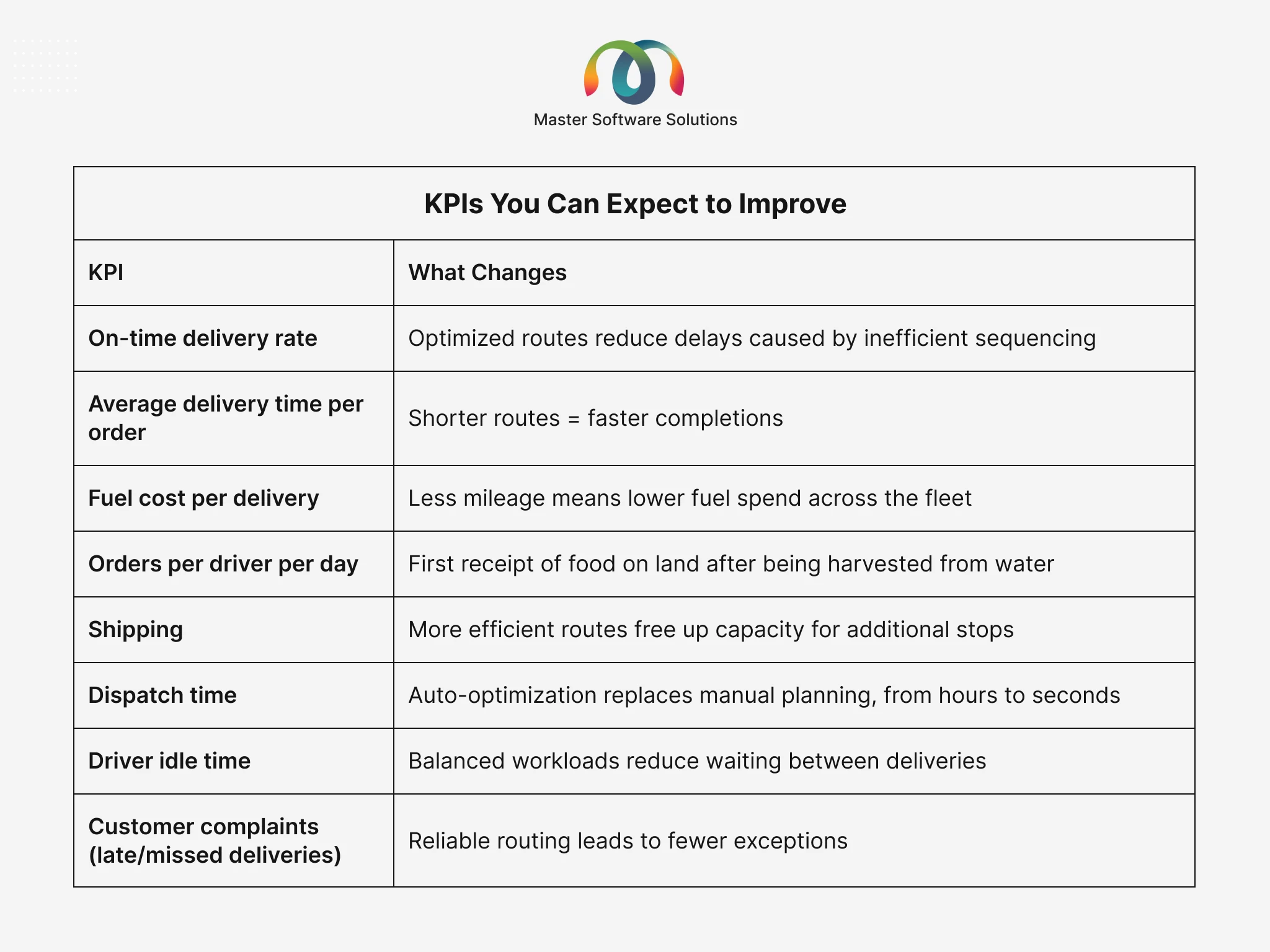
KPIs You Can Expect to Improve
Here’s where route optimization pays for itself. These are the metrics that move when you make the switch:
Step-by-Step: How to Set Up and Use Route Optimization in Odoo
Ready to get started? Here’s the full process from installation to your first optimized run.
Once you have downloaded the “Route Optimization” plugin, it will appear in your main Odoo dashboard.
Step 1: From the Odoo apps grid, open Route Optimization (the compass/map icon). It sits beside the rest of the Delivro suite: Driver App, Fleet, and Field Service. If you open Route Planning instead, that’s the old module; close it.
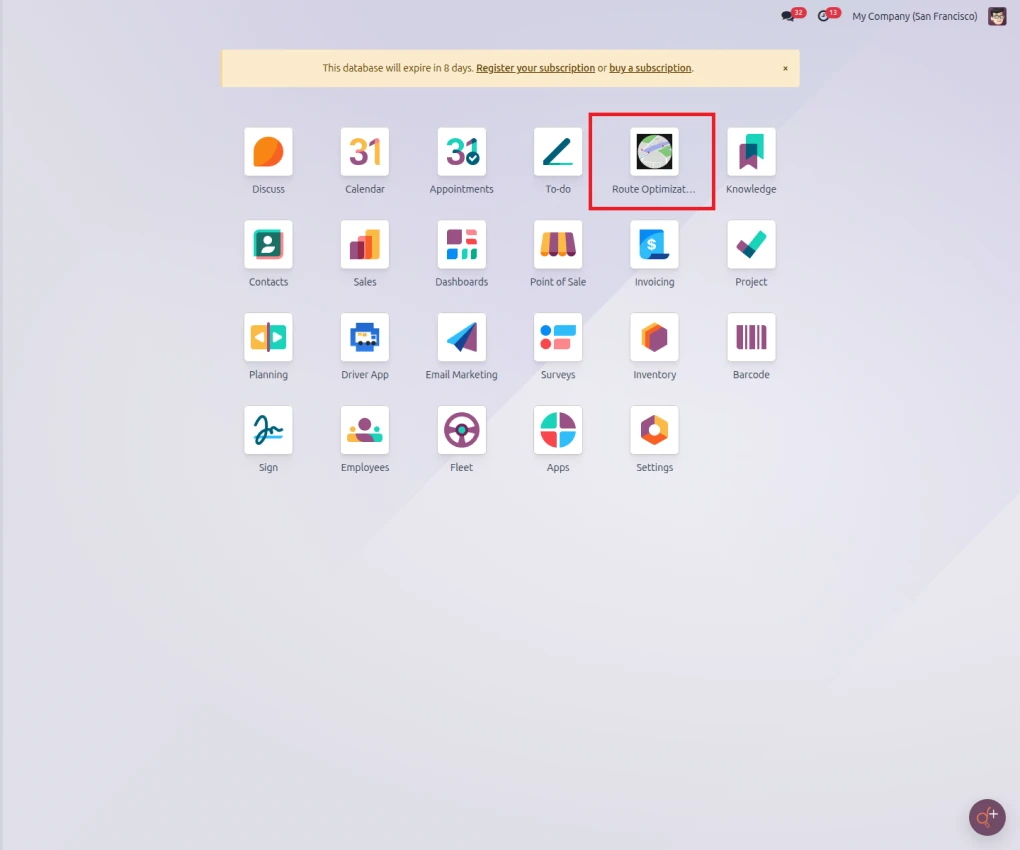
Apps grid, Route Optimization (top row) alongside Driver App and Fleet. (The amber top banner is just a license-renewal reminder on this staging server: the database is active.)
Geocode the Customer
Every stop needs coordinates. Open the customer contact, set a valid Address, and confirm the map pin lands correctly. No coordinates = the job is dropped with reason bad_coords.
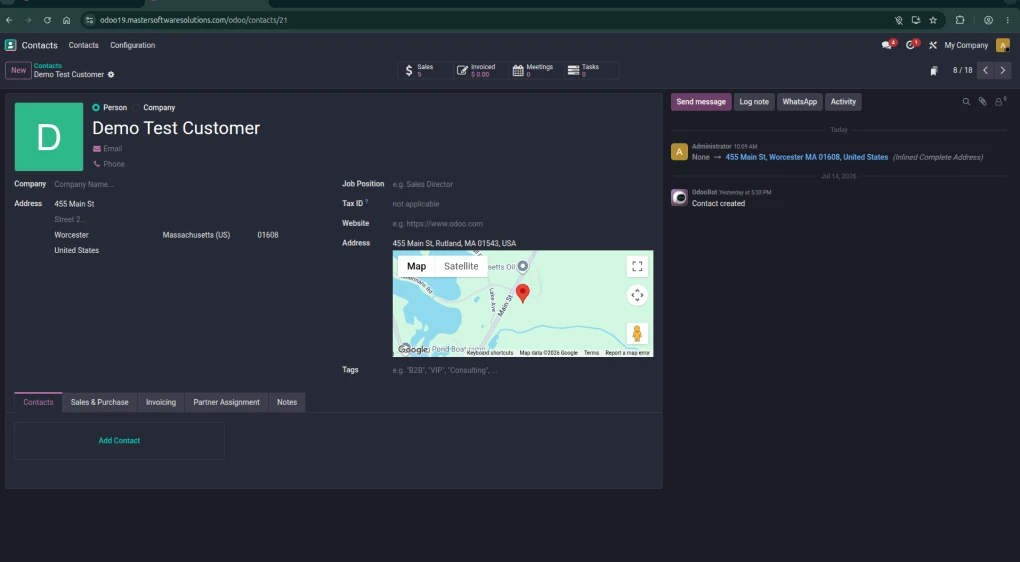
Contact with a real map pin: the optimizer reads this contact’s latitude/longitude.
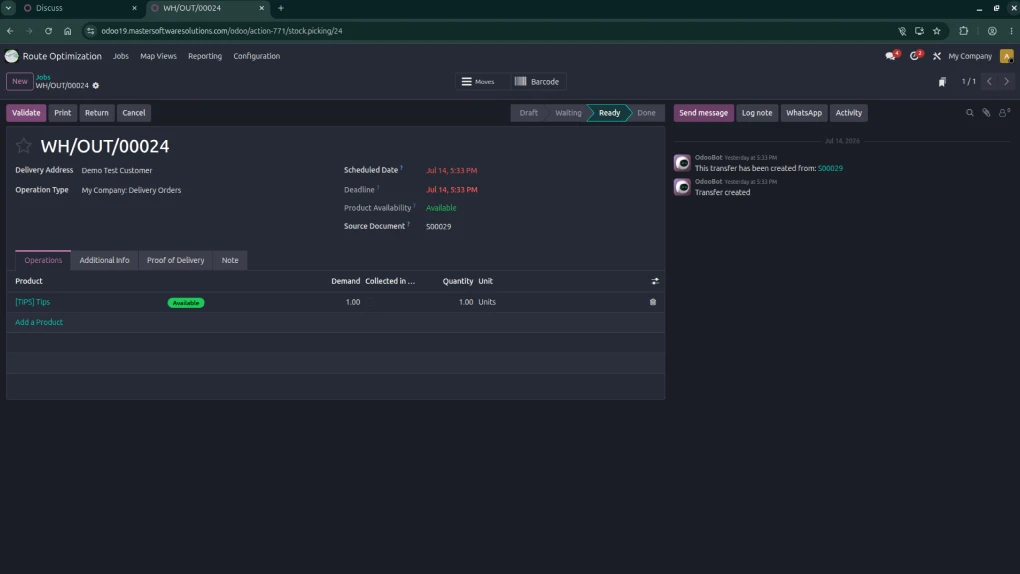
Delivery is ready and scheduled today.
The outgoing delivery must be in the ready state with its scheduled date set to today. Orders dated before/after today, or with no date, are excluded.
Registered Vehicle With Driver
At least one fleet, vehicle in Fleet state, registered, with a start warehouse (or its own coordinates) and a driver assigned.
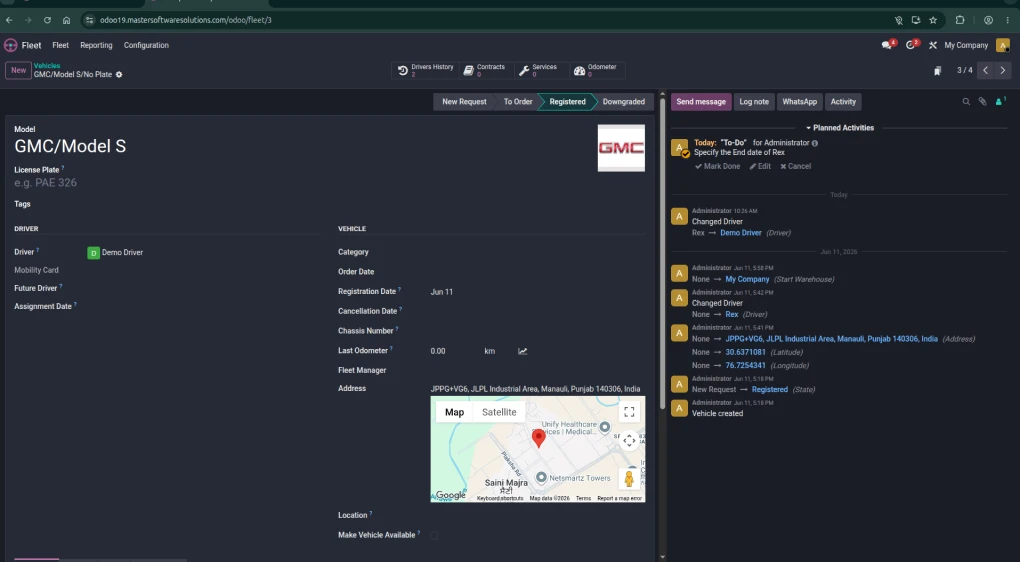
Fleet vehicle with a driver set and state-registered.
The Job List
In the app, Delivery Orders › Jobs is the work list. Every routable job is one row, grouped by Vehicle (filtered to Today by default: remove that filter to see other days). Pickings are pulled in automatically by a background job every 2 min.
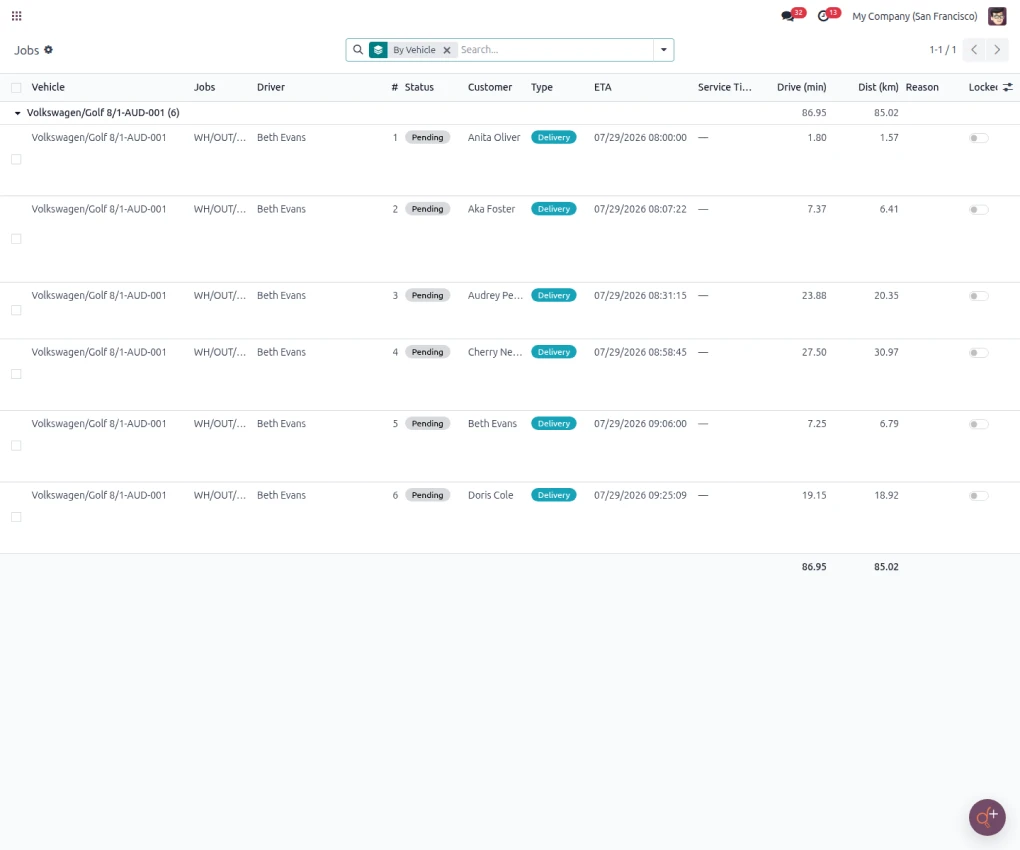
A real route in the Jobs list — vehicle Volkswagen/Golf 8 (AUD-001), driver Beth Evans, 6 stops sequenced 1→6 with per-stop Status, Customer, Type, ETA (08:00→09:25), Drive and Dist; the group totals 86.95 min / 85.02 km.
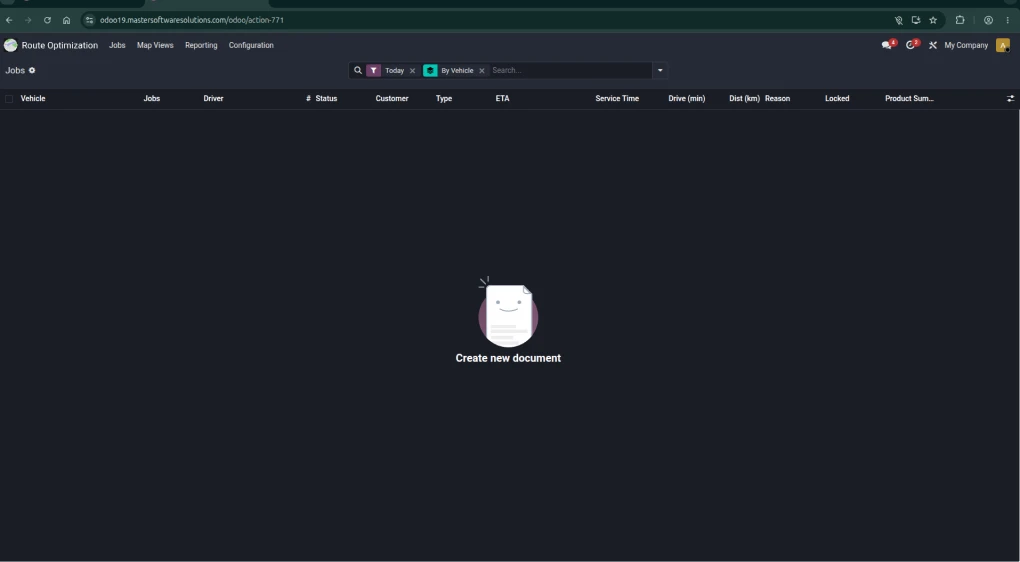
The Jobs columns (Vehicle, Driver, #, Status, Customer, Type, ETA, Drive, Dist, Reason) with the default Today filter: a fresh day starts empty until you optimize.
Run Optimize
The Optimize control lives on the Map Views screen, in the Summary / Filters panel: Optimize, Force Re-Optimize, and Confirm & Notify. Press Optimize: the plugin gathers today’s ready deliveries, planned field-service tasks, and registered vehicles, sends them to the routing engine, and writes back one route. Unified Step per stop (vehicle, sequence, ETA, drive time, distance).
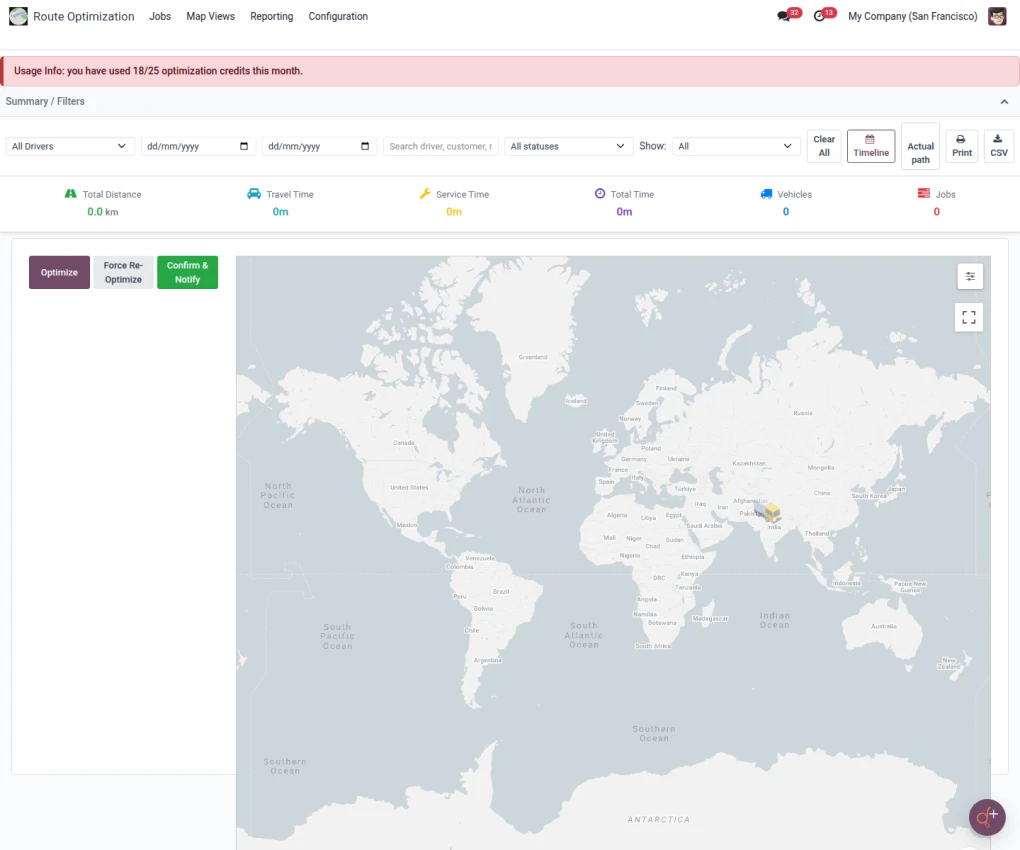
The Optimize / Force Re-Optimize / Confirm & Notify buttons in the Map Views panel, with the usage-credit counter and the Total Distance / Travel Time / Vehicles / Jobs summary tiles.
Read the Results
The Jobs list reloads: each vehicle group is a complete route in stop order, with ETA / drive time/distance per stop (see step 4). A banner confirms, “Unified route optimization complete. Jobs that couldn’t be placed stay in the None group with a reason.
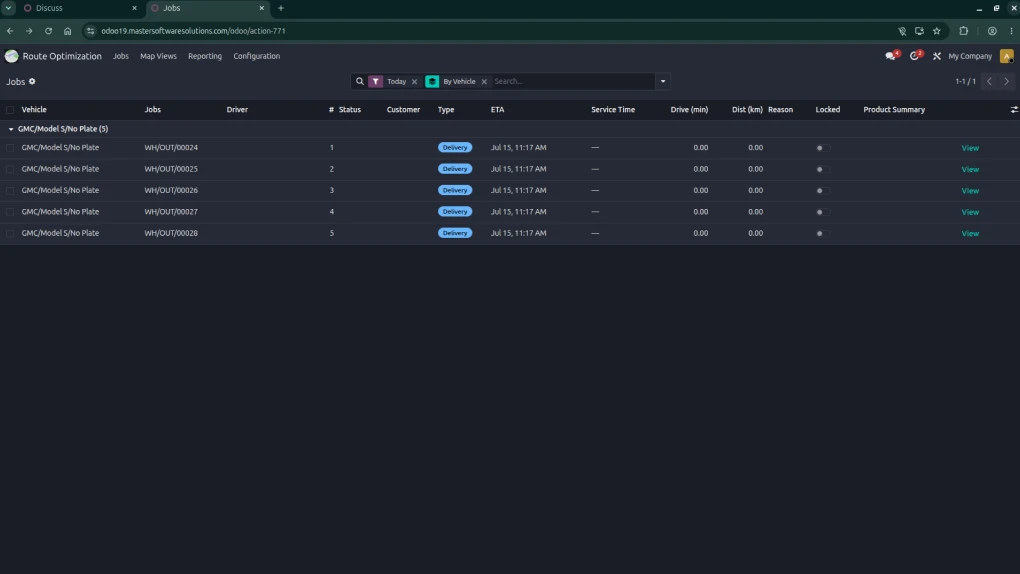
A completed plan: jobs assigned to a vehicle and sequenced with ETAs.
Map View
The Map Views menu shows the whole plan on a map: each vehicle’s route as a colored polyline, live stop positions, and summary tiles (distance, travel time, vehicles, and jobs). It’s also where the Optimize controls live (step 5).
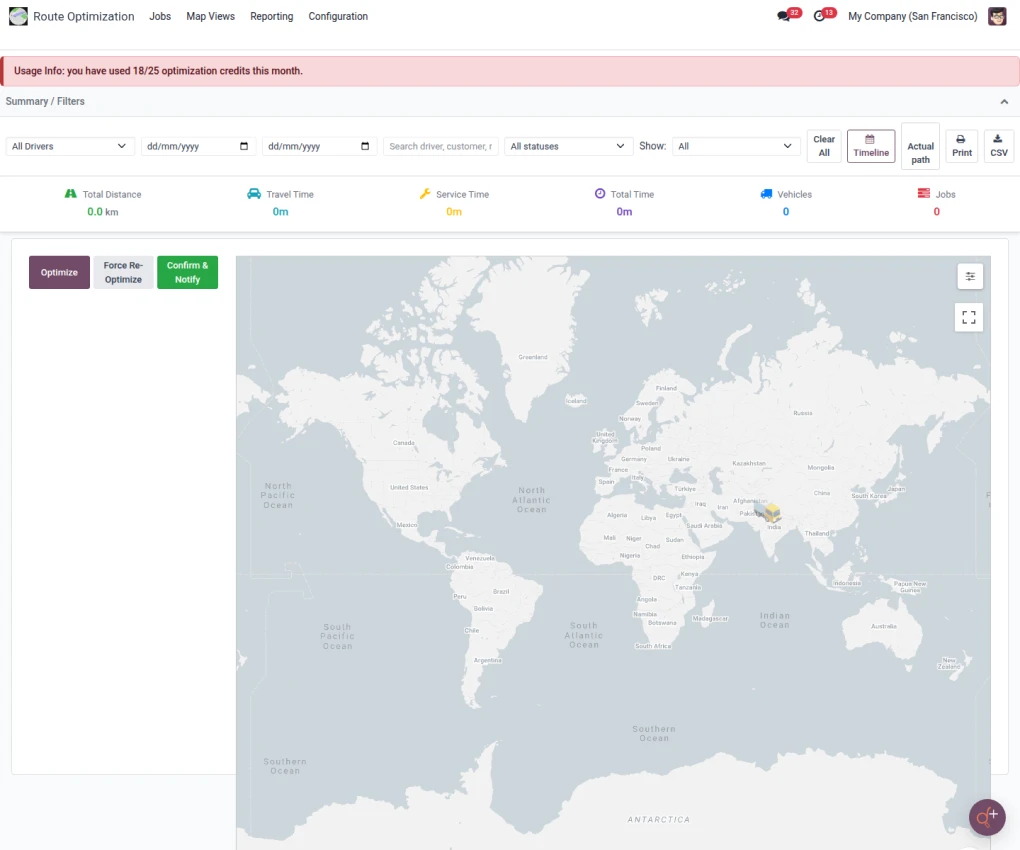
Map Views: the top menu (Jobs · Map Views · Reporting · Configuration), the summary tiles, the Optimize panel, and the map.
Reporting
Reporting holds Delivery Orders, Field Service, Route Plan, and Route History. The Route Plan lists every stop (Day, Route, Seq, Customer, Stop, Type, Unassigned, Reason); Route History is a frozen snapshot of each optimize run.
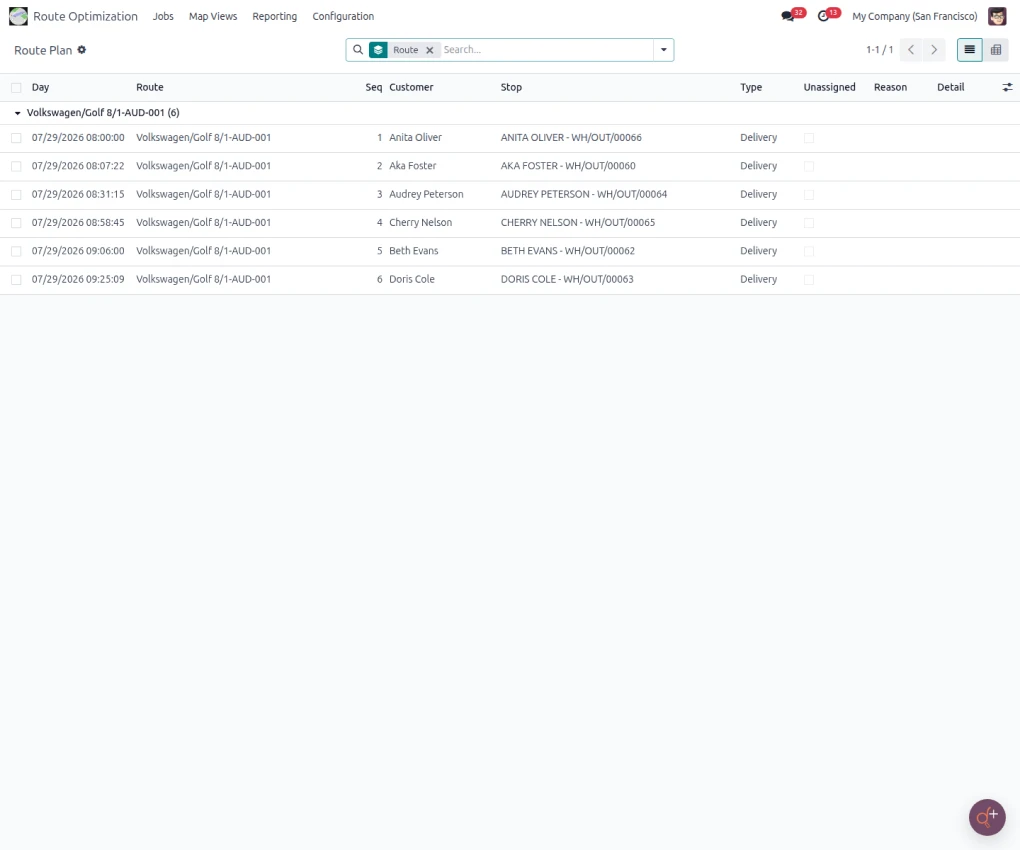
Reporting › Route Plan: the same VW Golf route: 6 stops with Day/ETA, Seq, Customer, Stop (customer + WH/OUT reference), and Type.
Configuration
Settings holds the plugin’s config; Configuration › Route Skills defines vehicle skills. The Settings blocks are Route Polyline & Cost Control (polyline provider + optimize cache window) and Map View Tuning (map poll intervals + collapse threshold).
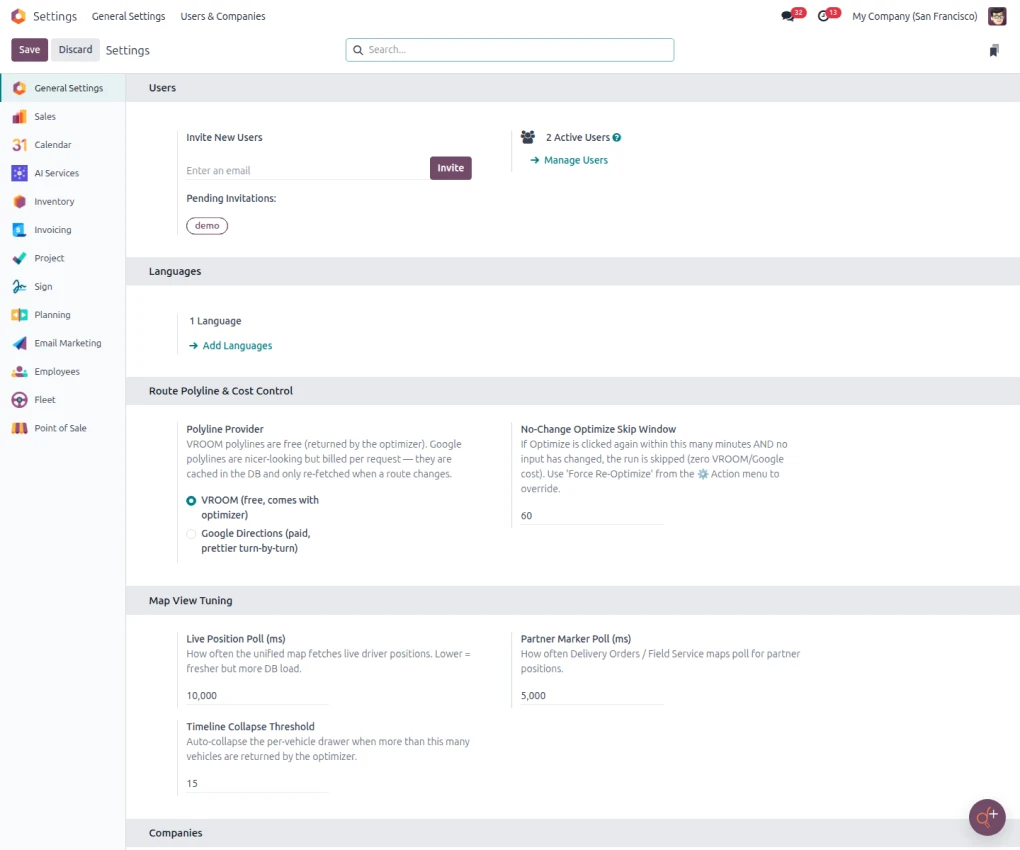
Route Polyline & Cost Control: Polyline Provider (VROOM free / Google Directions paid) and the No-Change Optimize Skip Window (60 min).
Map View Tuning: live-position poll (10,000 ms), partner-marker poll (5,000 ms), timeline collapse threshold (15).
Conclusion
Last-mile delivery is one of the hardest parts of running a product-based business and one of the most important. Customers don’t see your warehouse, your inventory management, or your backend systems. They see whether their order showed up on time.
Odoo’s Route Optimization plugin closes the gap between a confirmed sales order and a happy customer at the door. By automating the most time-consuming part of daily dispatch, giving you real-time map visibility, and letting you override assignments when you need to, it fits the way delivery operations actually work — not just the way they work in theory.
If you’re already running Odoo and managing a delivery fleet, this plugin is one of the highest-ROI additions you can make. The setup takes minutes. The time savings start the same day.
Ready to automate your last-mile delivery? Request a quote and our team will help you set up the Route Optimization plugin for your fleet.